
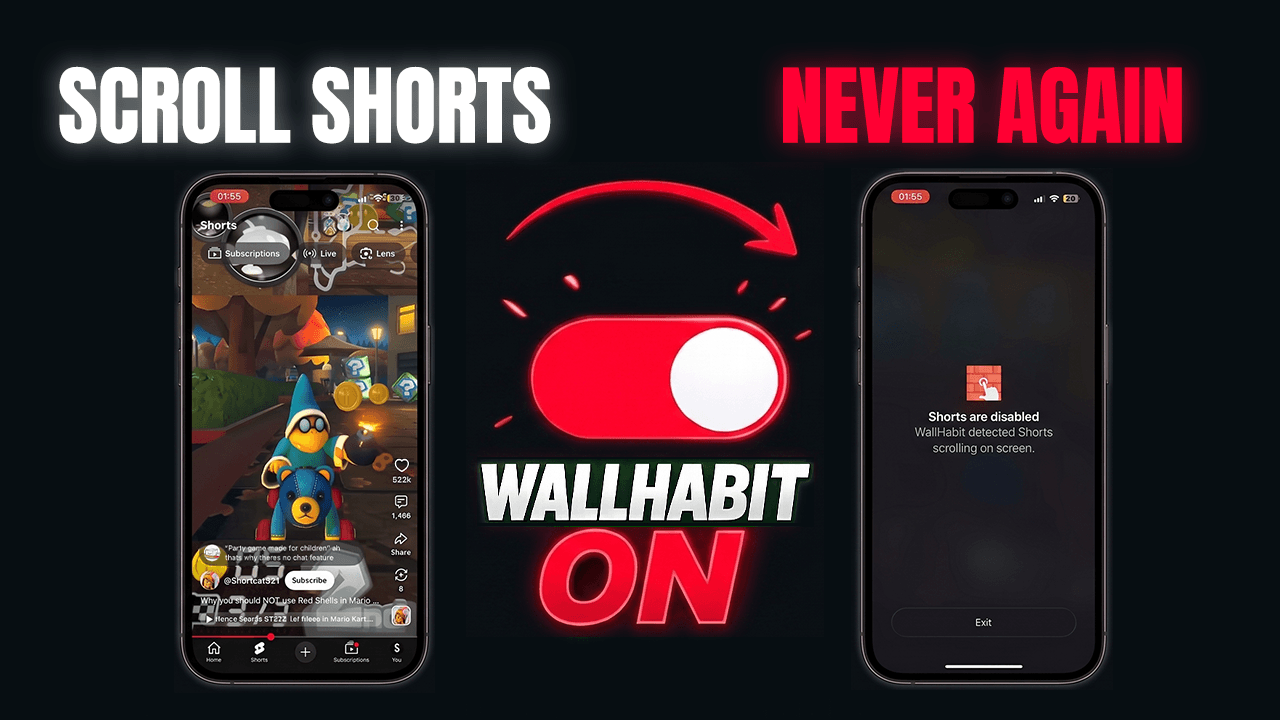
Since WallHabit 1.1.4 (July 2026), YouTube Shorts can be blocked inside the native YouTube app on your iPhone. You keep the real app — subscriptions, search, watch history, your regular videos — and the moment you land on the Shorts feed, WallHabit detects it and backs you out before the scroll can start. Two minutes of setup, no web versions, no deleting anything. Here’s how to do it, and what YouTube’s own options can and can’t do.
What changed in WallHabit 1.1.4
Every previous way to block Shorts on iPhone forced a bad trade. Lock the whole YouTube app and you lose the videos you actually came for; switch to a stripped-down web version and you’re logged out of your account, with no offline downloads and none of the comforts of the real app.
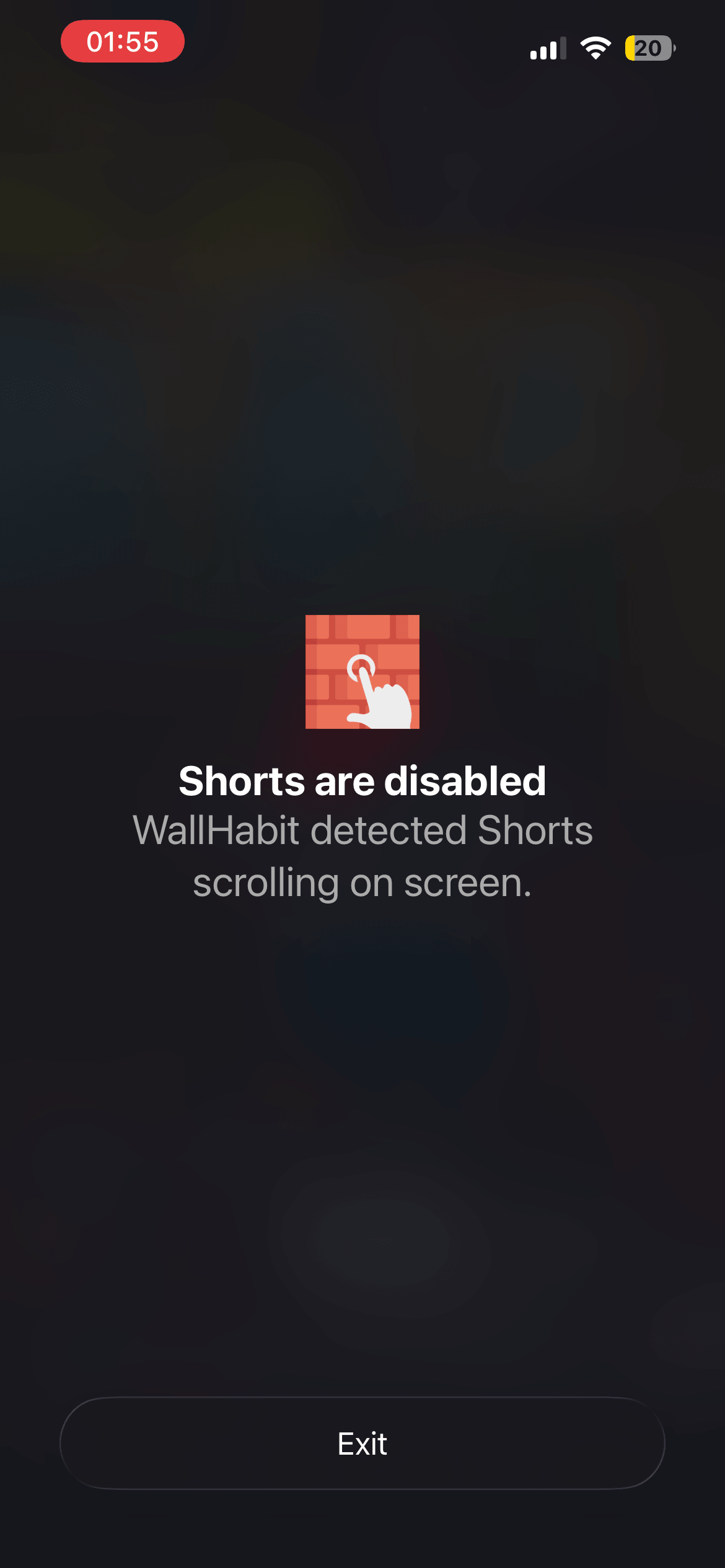
WallHabit 1.1.4 ends that trade-off. The new native blocking runs inside the real YouTube app: one switch, and Shorts stop working — you tap the Shorts tab, WallHabit detects it, and you’re instantly back where you were. Android users have had this for a while; iOS finally catches up.
What YouTube itself lets you do (and why it’s not enough)
To be fair to YouTube: it gives you two half-measures. You can tap the three dots on any Short and choose “Not interested”, which slowly trains the algorithm to show you fewer of them, and you can dismiss the Shorts shelf from your Home feed — but the shelf quietly comes back, and the Shorts tab at the bottom of the app never goes away.
Neither option disables Shorts. They lower the volume for a while, and the feed is still one tap away every time you open the app. If you’ve tried them and still find yourself in the vertical feed at 1 a.m., that’s not a willpower problem — it’s the design working as intended.
Why this used to be considered impossible on iOS
The reason no tool had truly solved this comes down to how iOS works: apps are sandboxed from each other, and Apple’s own Screen Time can only lock YouTube entirely — it has no way to switch off one feature inside it, and its limits vanish with a tap on “Ignore Limit”. So the market settled for web wrappers and called in-app blocking impossible.
Building it natively took a full month of development — the hardest feature we’ve ever shipped (the launch discussion on Reddit has the details). Here’s how the three approaches stack up:
| WallHabit 1.1.4 native blocking |
Web “distraction-free” versions | iOS Screen Time | |
|---|---|---|---|
| Stops Shorts without locking the whole app | ✓ | ✓ | ✗ |
| Works inside the real YouTube app | ✓ | ✗ | ✗ 1 |
| Subscriptions, search and history keep working | ✓ | ✓ | ✗ |
| Offline downloads & every native feature | ✓ | ✗ | ✗ 1 |
| No extra login required | ✓ | ✗ | ✓ |
| Hard to bypass in a weak moment | ✓ | ✓ | ✗ 2 |
1 Screen Time can only lock the entire app — it can’t turn off a single feature. 2 “Ignore Limit” removes the block with one tap.
How to block YouTube Shorts on iPhone (2-minute setup)
-
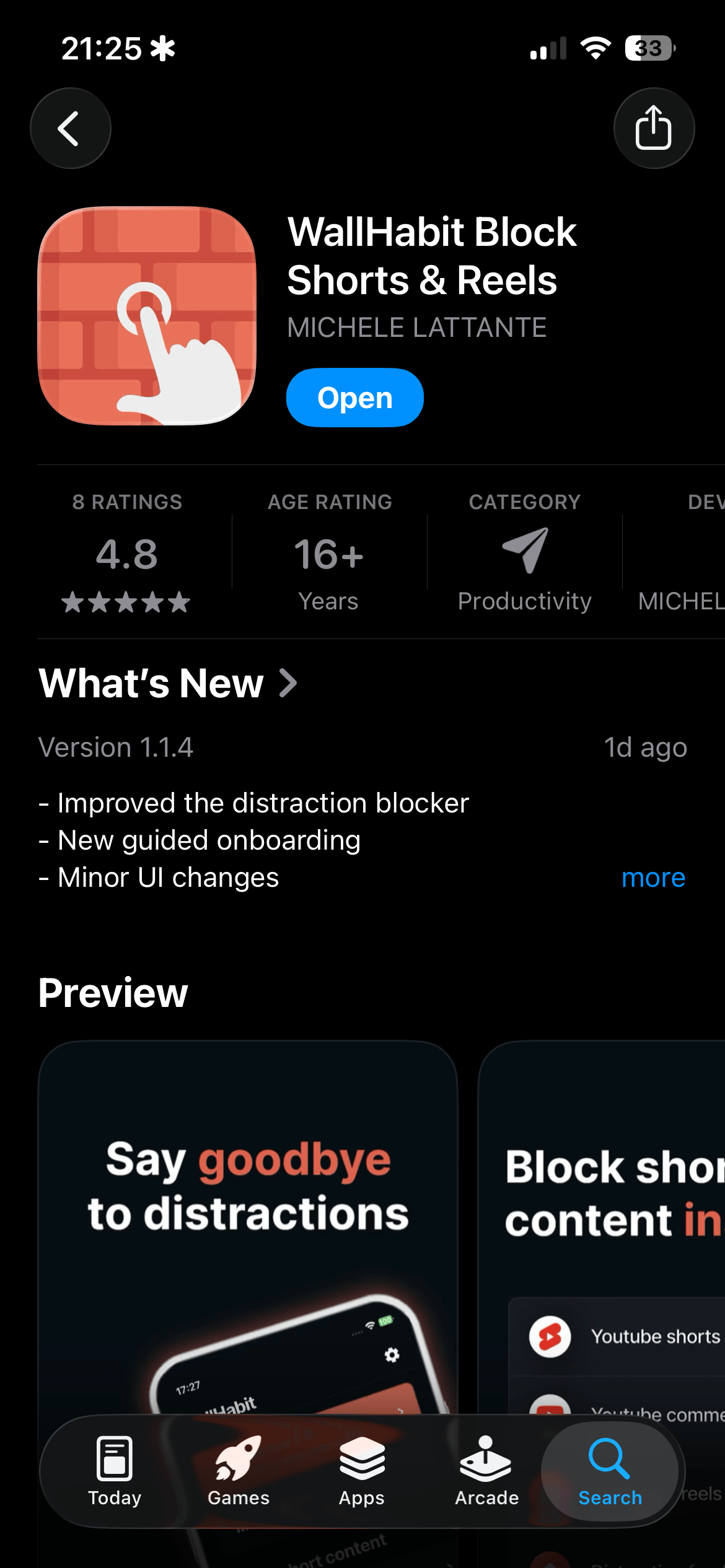
Update WallHabit to version 1.1.4 from the App Store. If you don’t have it yet, download it — native Shorts blocking is included.

-
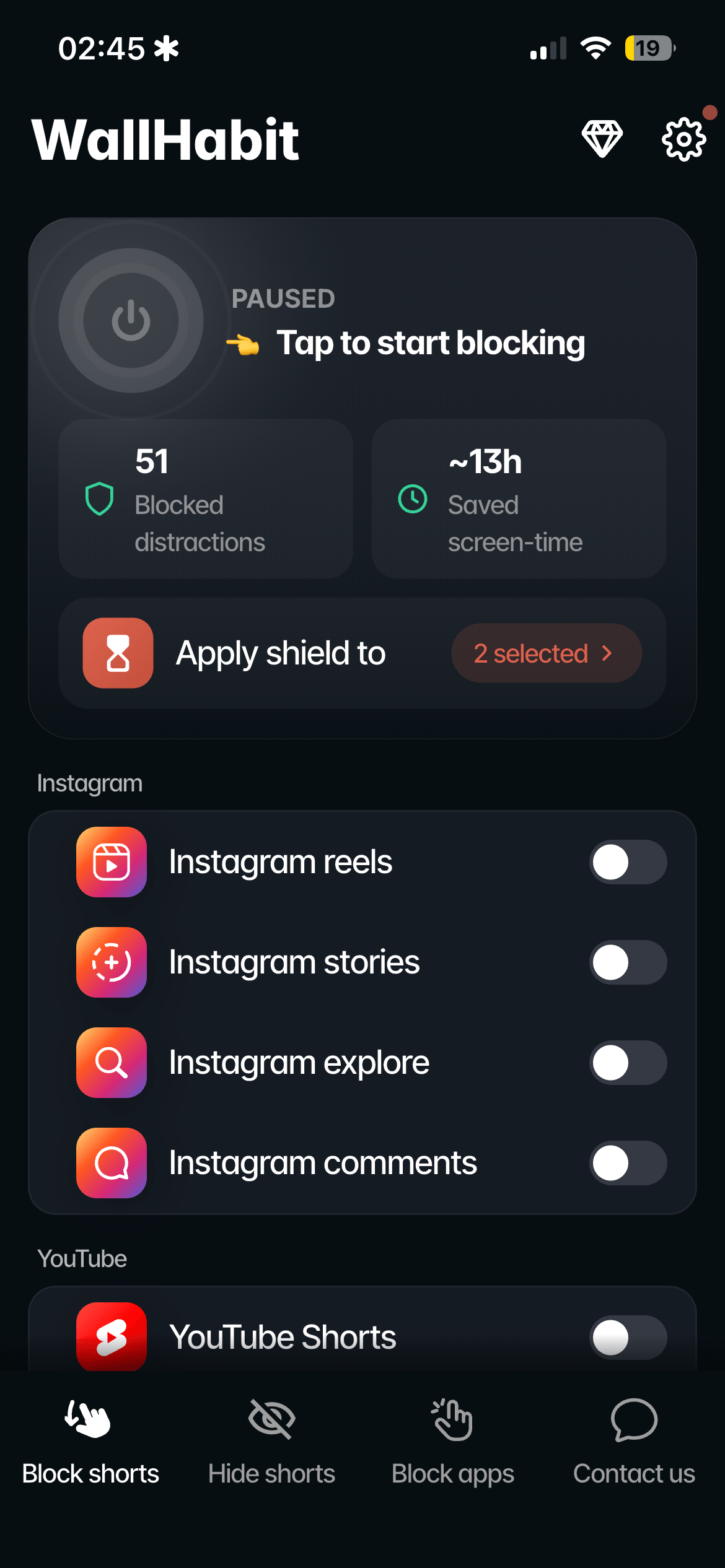
Open WallHabit and go to the YouTube settings.
-
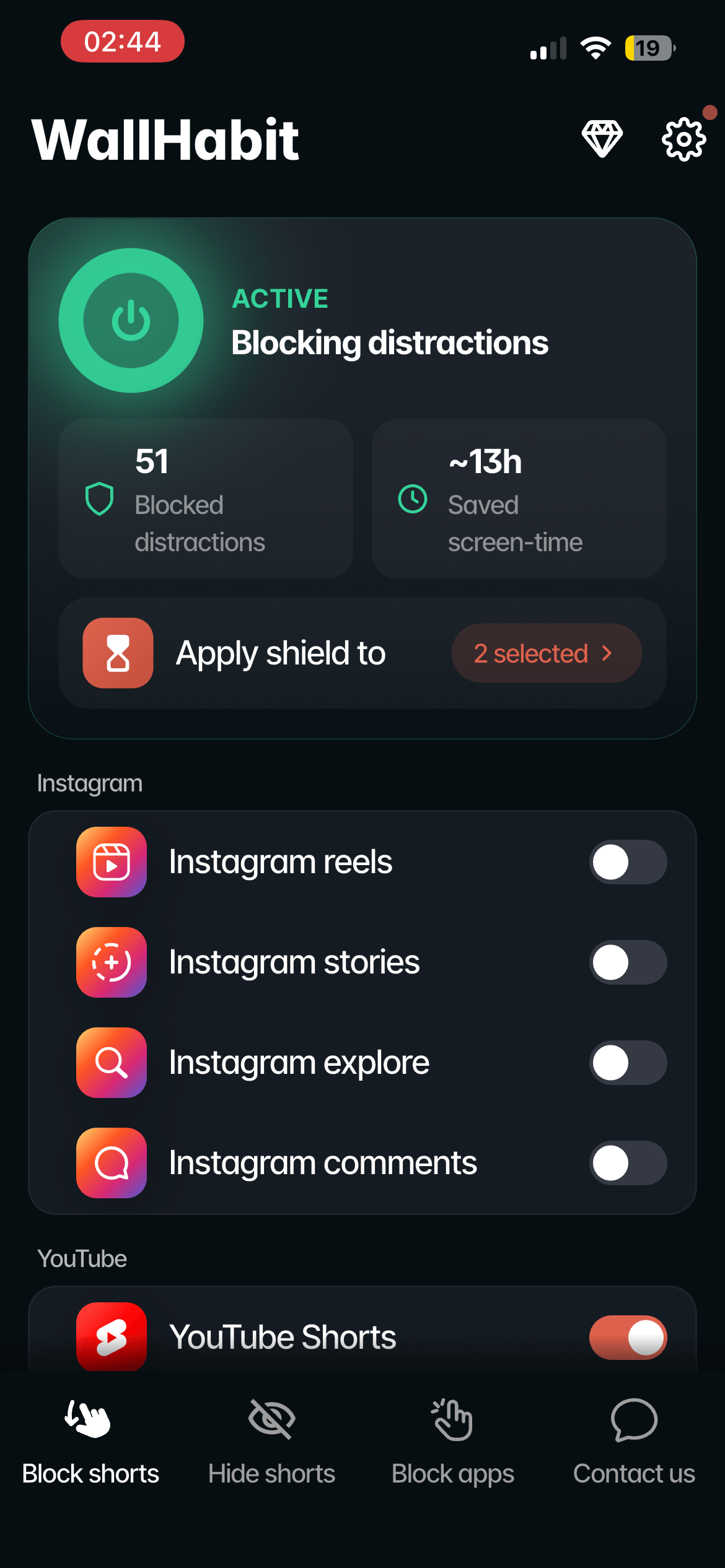
Turn on the “Block Shorts” toggle. That’s the whole setup.
-
Open YouTube and tap Shorts. The feed starts to load, WallHabit detects it, and you’re back out — subscriptions, search and your regular videos untouched. The loop never gets to spin.
Instagram is covered by the same system: here’s the guide to blocking Instagram Reels inside the native app.
Pair it with the tapping challenge
Blocking Shorts handles the trap inside YouTube; the tapping challenge handles the reflex of opening the app at all. Put YouTube behind WallHabit’s Tap to unlock challenge — hundreds of consecutive taps, and the counter resets if you stop — for study sessions or deep work, and let Shorts blocking cover everyday viewing.
Everything runs locally on your device: WallHabit doesn’t see what you watch or touch your account.
Alternative: distraction-free YouTube
Native blocking is the main method now, but the distraction-free mode hasn’t gone anywhere — and for YouTube it’s unusually powerful. Instead of bouncing you out of Shorts, it completely hides whatever you tell it to hide: the Shorts feed, the comments section, even the search bar if rabbit holes are your weakness. What you remove simply isn’t on the screen anymore.
Setting it up takes about a minute:
-
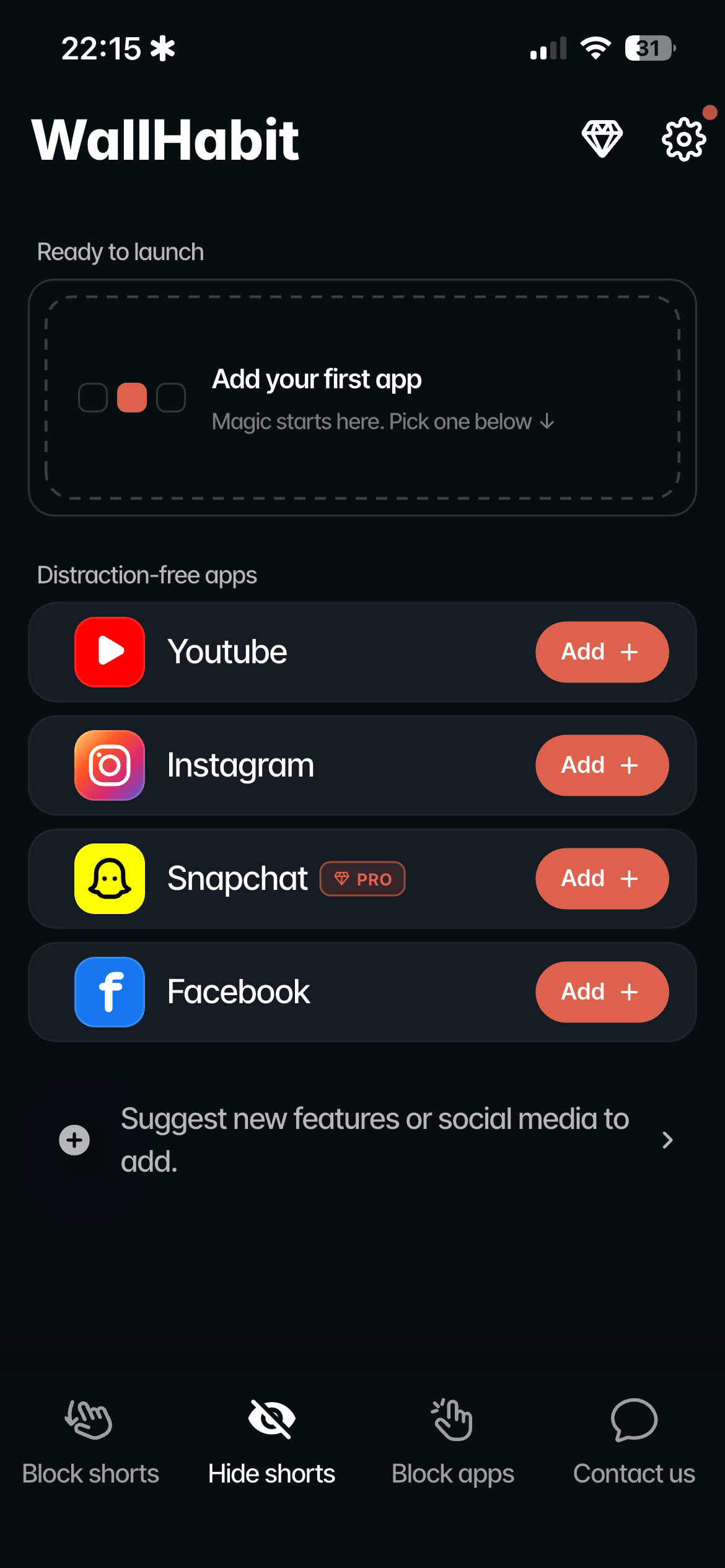
Open WallHabit and go to the Hide settings — distraction-free mode lives there, separate from the native blocking toggles.
-
Switch to distraction-free YouTube: tap Add, then pick exactly what to hide — Shorts, comments, search.
-
Open the distraction-free version. There’s no Shorts tab and nothing to bounce out of — it’s just gone.
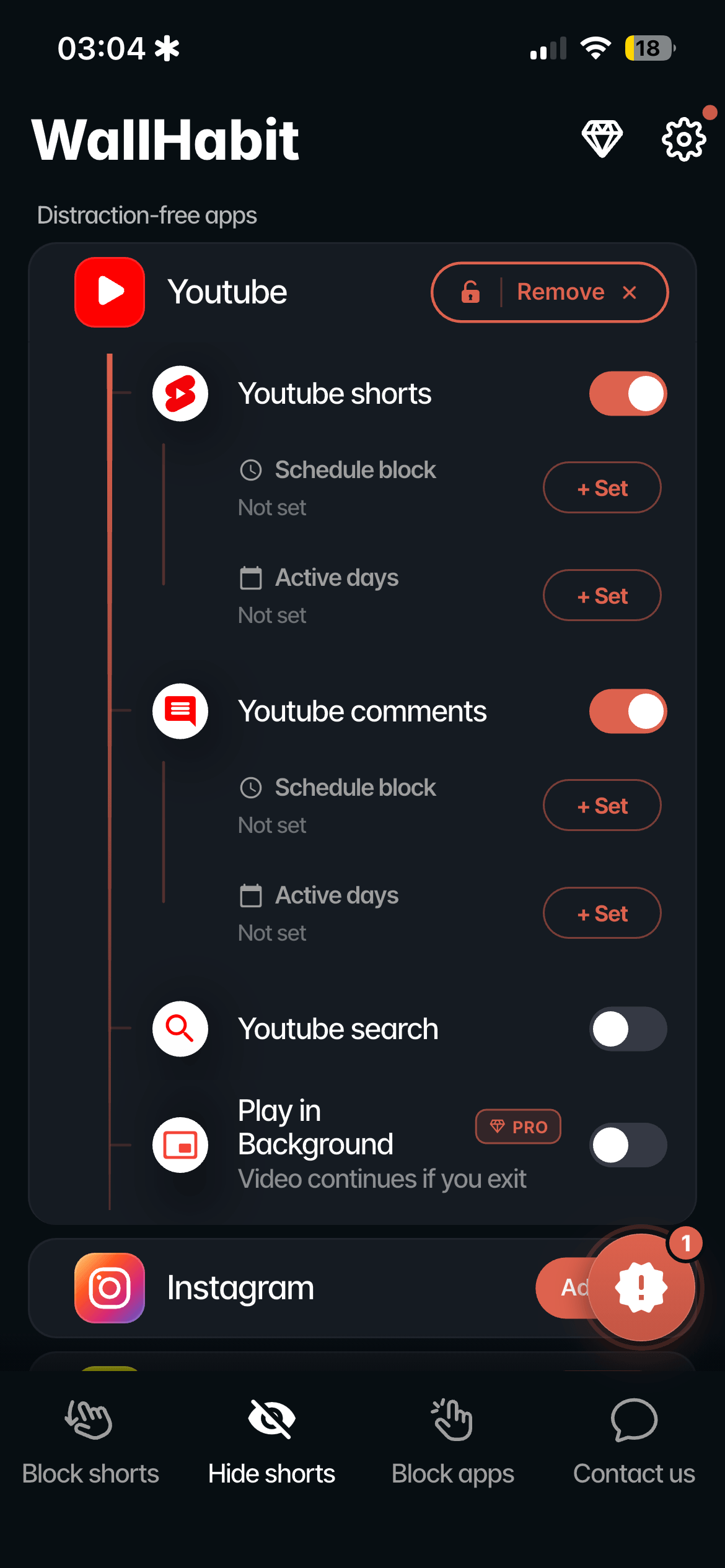
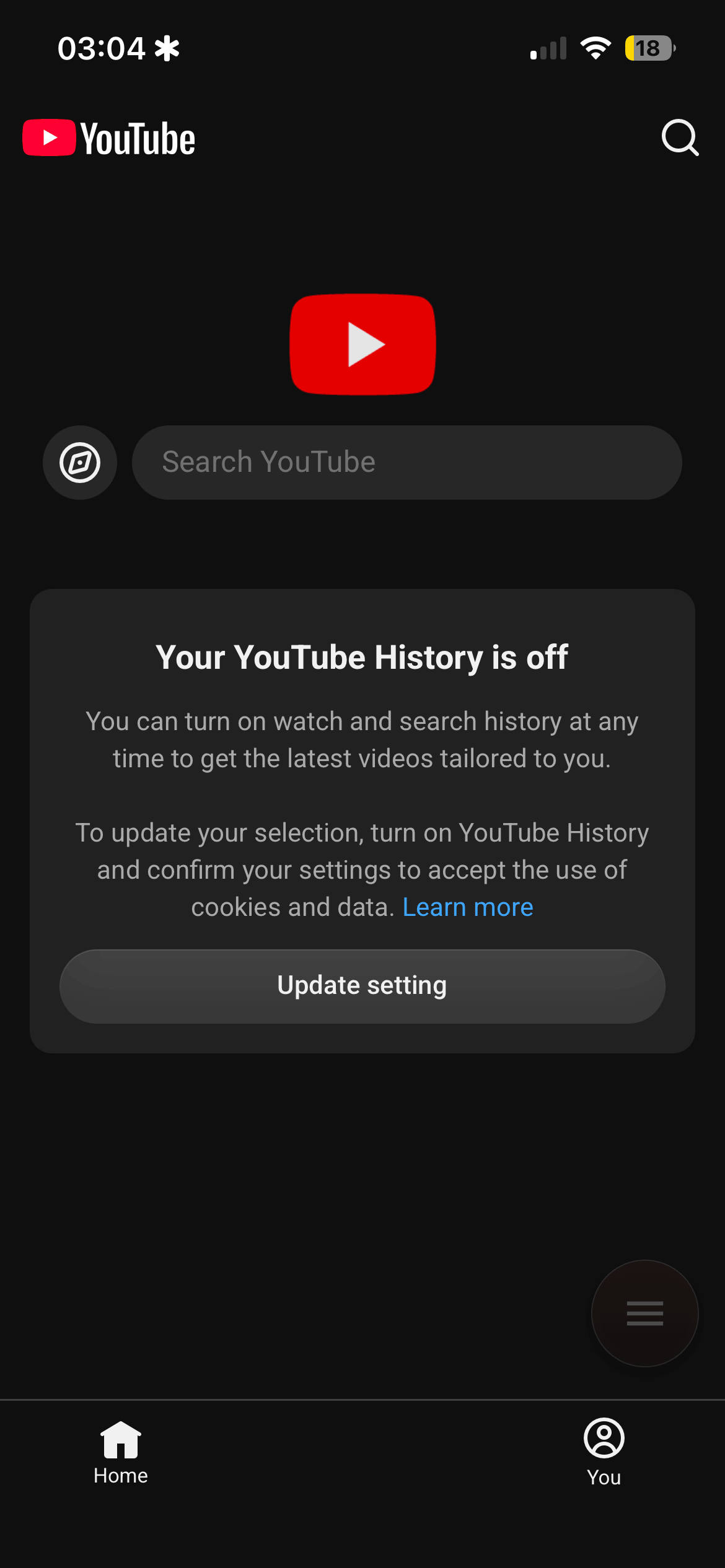
Two philosophies, one goal: native blocking catches you at the door of the feed; distraction-free removes the door. You can run both — distraction-free YouTube for everyday viewing, the native app with Shorts blocked for the days you need offline downloads or your full account.
Frequently Asked Questions
Is there a way to turn off YouTube Shorts on iPhone?
Yes. Since WallHabit 1.1.4 (July 2026), you can block the Shorts feed inside the native YouTube app on iOS: open Shorts and WallHabit instantly backs you out, while subscriptions, search, history and regular videos keep working. Apple’s Screen Time can’t do this — it only locks the entire app.
Can I disable Shorts inside YouTube itself?
Not permanently. YouTube lets you mark individual Shorts as “Not interested” and dismiss the Shorts shelf from your Home feed, but the shelf comes back and the Shorts tab never leaves the app. There is no official setting that turns Shorts off for good.
Can I block Shorts and keep my subscriptions and watch history?
Yes — that’s the point of native blocking. You stay in the real YouTube app with your own account: subscriptions, playlists, history and recommendations are untouched. Only the Shorts feed stops working.
Does this work in the real YouTube app, or a web version?
In the real app. Older workarounds — including our own distraction-free mode — rely on web versions of YouTube, which log you out and drop native features like offline downloads. WallHabit 1.1.4 works directly on the native app: nothing to re-log into, nothing missing.
How do I stop my child from watching YouTube Shorts?
Turn on Shorts blocking on their device, then keep the setup protected behind WallHabit’s Tap to unlock challenge so the block can’t be casually undone. They keep normal YouTube for the content they actually look for; the endless vertical feed stops being an option.
Does the same thing work for Instagram Reels?
Yes — the same native system covers Instagram. Full guide: how to block Instagram Reels inside the native app on iPhone.
Final thoughts: your YouTube, your queue
YouTube used to be the one place online where you watched what you chose: you searched, you clicked, you left. Shorts inverted that — a feed that chooses for you, one flick at a time. Blocking it doesn’t shrink YouTube; it restores it.
Keep the subscriptions, the tutorials, the concerts and the three-hour deep dives, and lose the slot machine in the bottom bar. Watching a Short should be a choice — from now on, it is.
Flip the switch. Doomscrolling gone.
Native Shorts & Reels blocking is live in WallHabit 1.1.4 for iOS.
Get WallHabit on the App Store Questions? Join the launch discussion on Reddit