
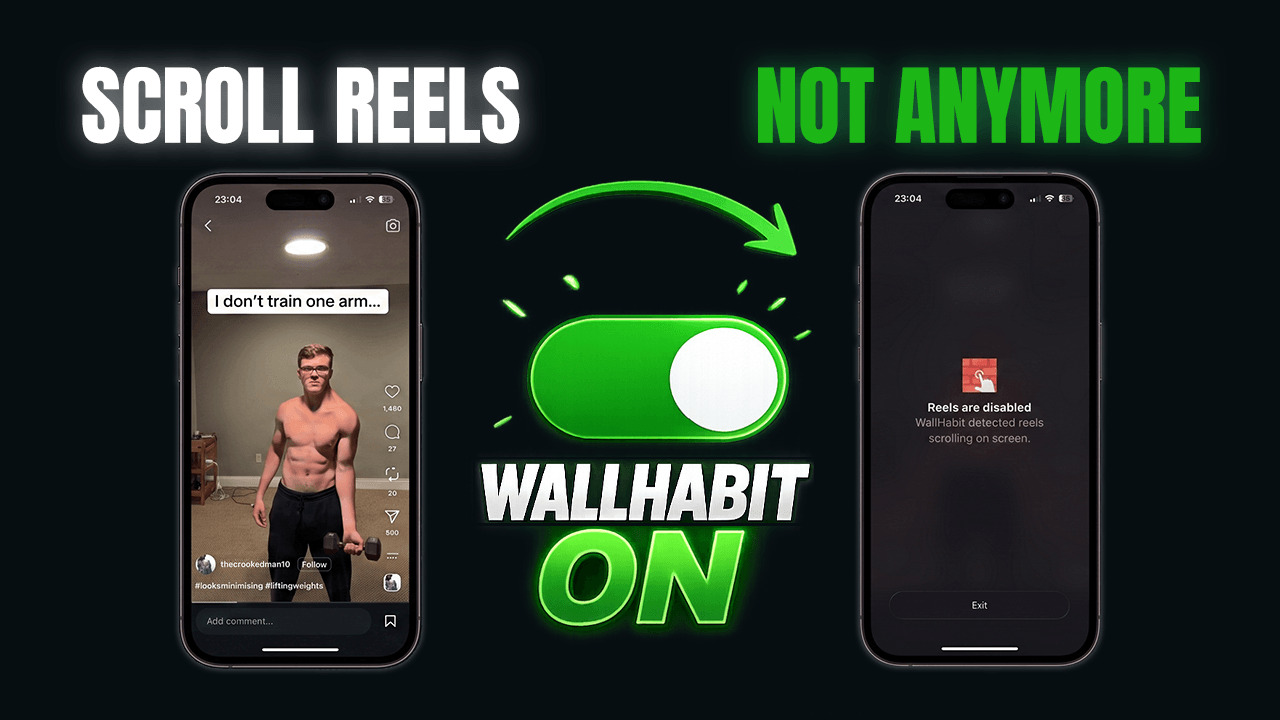
As of WallHabit 1.1.4 (July 2026), you can block Instagram Reels directly inside the native Instagram app on your iPhone. No web versions, no deleting the app, no locking yourself out: your DMs, stories and feed keep working exactly as before — but the moment you open Reels, WallHabit detects it and takes you straight back out. This guide shows you how to set it up in about two minutes, and why this wasn’t possible on iOS until now.
What changed in WallHabit 1.1.4
Until now, every “Reels blocker” for iPhone had to choose between two compromises. It could block the entire Instagram app — which also cuts you off from messages and friends — or it could send you to a stripped-down web version of Instagram, where features like posting with music simply don’t exist and you have to log in all over again.
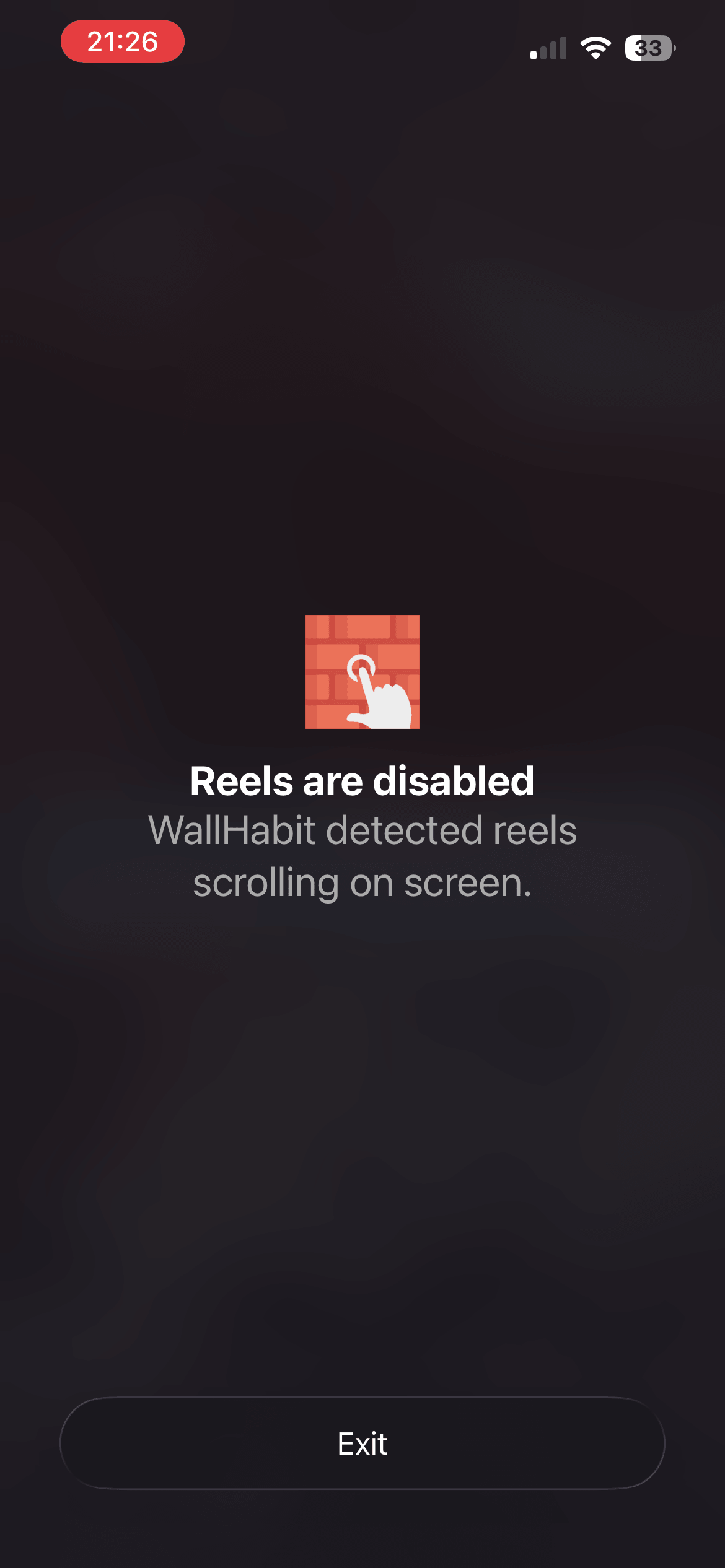
WallHabit 1.1.4 removes that trade-off. The new native blocking works inside the real Instagram and YouTube apps: flip a single switch and Reels stop working — the moment you land on them, WallHabit detects it and instantly backs you out, while everything else stays untouched. It’s the same approach WallHabit users have had on Android for a while — finally on iOS.
Why this used to be considered impossible on iOS
iOS is famously strict about what one app can do to another. Apple’s own Screen Time can lock a whole app behind a timer, but it can’t reach inside Instagram and switch off a single feature — and it’s bypassed with one tap on “Ignore Limit”. That’s why most tools on the market still tell you that in-app blocking on iPhone can’t be done, and fall back on web wrappers.
Getting a native solution to work took a full month of development, and it’s the hardest feature we’ve ever shipped (here’s the launch discussion on Reddit). Here’s how the three approaches compare:
| WallHabit 1.1.4 native blocking |
Web “distraction-free” versions | iOS Screen Time | |
|---|---|---|---|
| Removes just the Reels feed | ✓ | ✓ | ✗ |
| Works inside the real Instagram app | ✓ | ✗ | ✗ 1 |
| DMs, stories and feed keep working | ✓ | ✓ | ✗ |
| Posting with music & every native feature | ✓ | ✗ | ✗ 1 |
| No extra login required | ✓ | ✗ | ✓ |
| Hard to bypass in a weak moment | ✓ | ✓ | ✗ 2 |
1 Screen Time can only lock the entire app — it can’t turn off a single feature. 2 “Ignore Limit” removes the block with one tap.
How to block Instagram Reels on iPhone (2-minute setup)
-
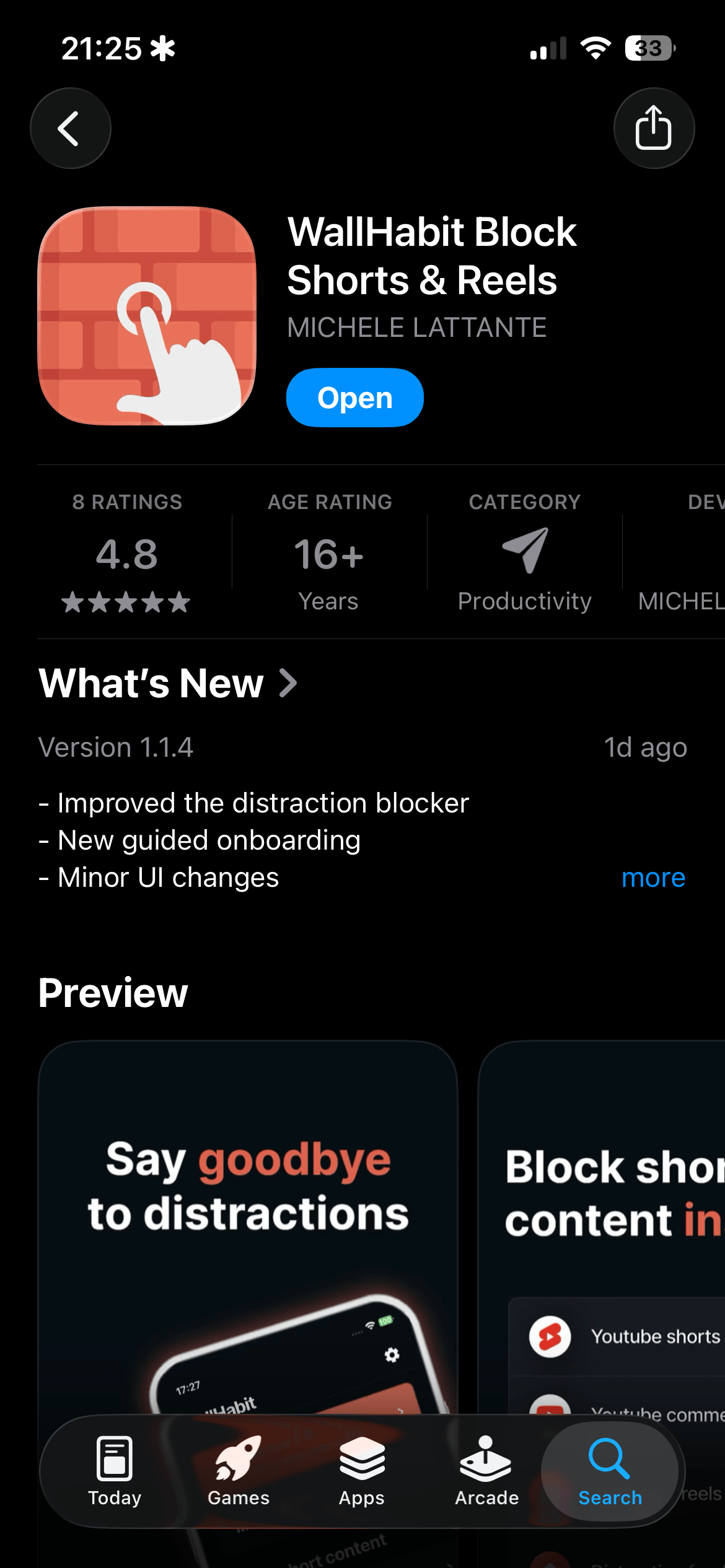
Update WallHabit to version 1.1.4 from the App Store. If you don’t have it yet, download it — native Reels blocking is included.

-
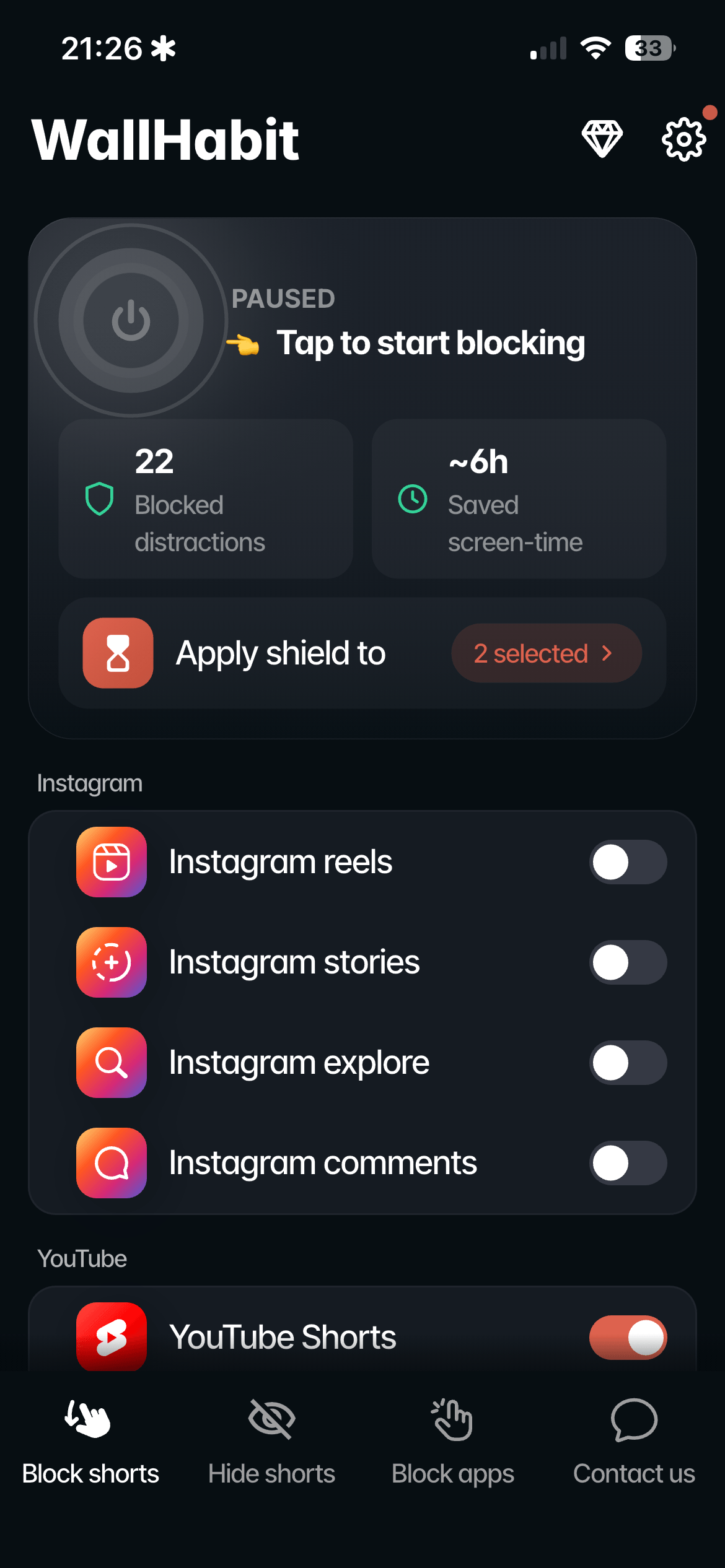
Open WallHabit and go to the Instagram settings.
-
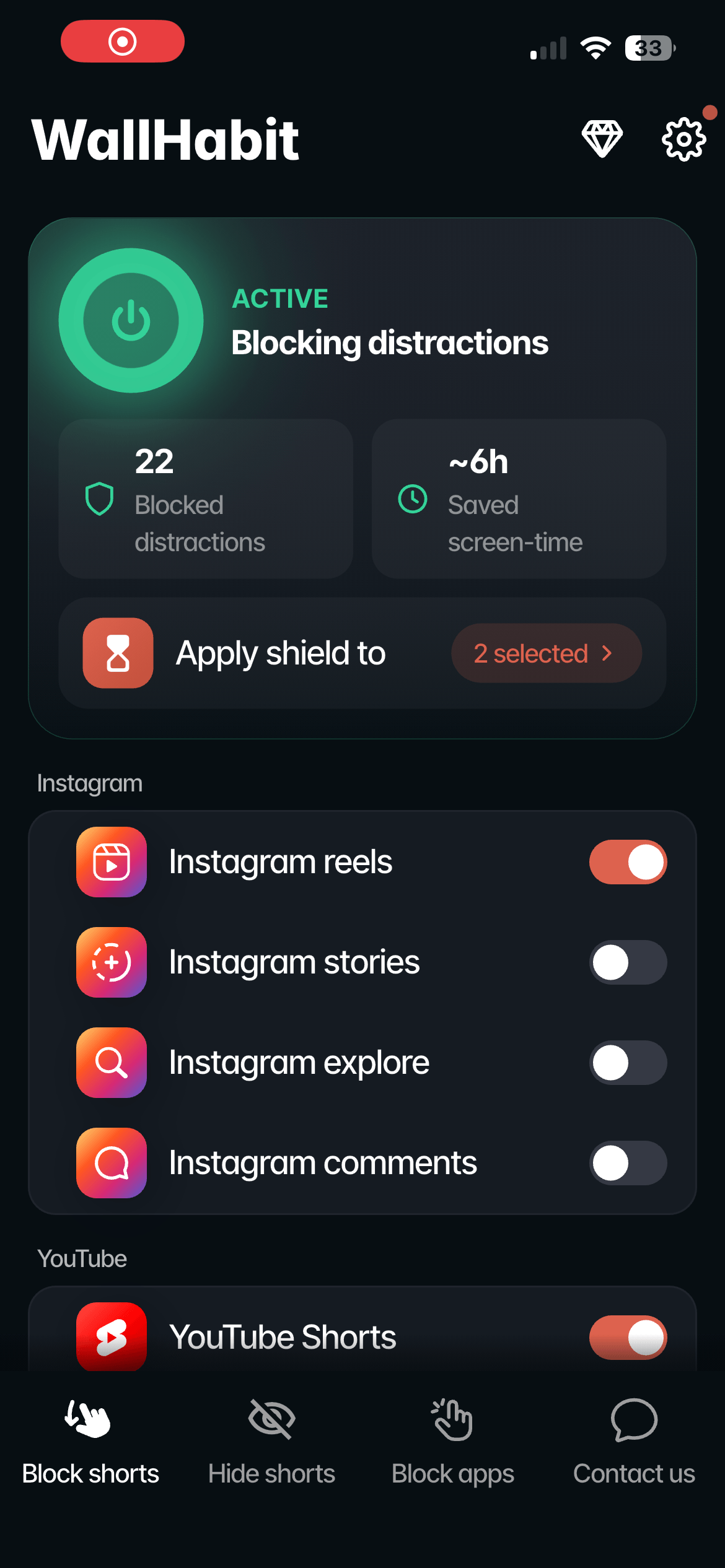
Turn on the “Block Reels” toggle. That’s the whole setup.
-
Open Instagram and tap on Reels. The moment the feed loads, WallHabit detects it and takes you right back out — your feed, DMs and stories work exactly like before. The doomscrolling loop is broken.
The same switch exists for YouTube: see our guide to disabling YouTube Shorts on iOS.
Pair it with the tapping challenge
Native Reels blocking works well alongside WallHabit’s original feature: the tapping challenge. Keep the Instagram app itself behind a physical commitment device — for example, 300 consecutive taps to open it — for the moments when you want real friction, and use Reels blocking for everyday browsing. The pause forces one useful question: do I actually need to open this right now?
Everything runs locally on your device: WallHabit doesn’t read your messages or your account data.
Alternative: using Distraction-free Instagram
Native blocking is now the main method, but WallHabit’s distraction-free mode is still available—and highly customizable. Instead of just blocking features, its main advantage is that it completely hides the specific distractions you decide to remove. You have full control to make Reels, the Explore page, and suggested posts disappear entirely.
You can enable it from the Hide settings in WallHabit, and combine the two freely: distraction-free mode for everyday browsing, the native app with Reels blocked for the days you want to post.
Setting it up takes about a minute:
-
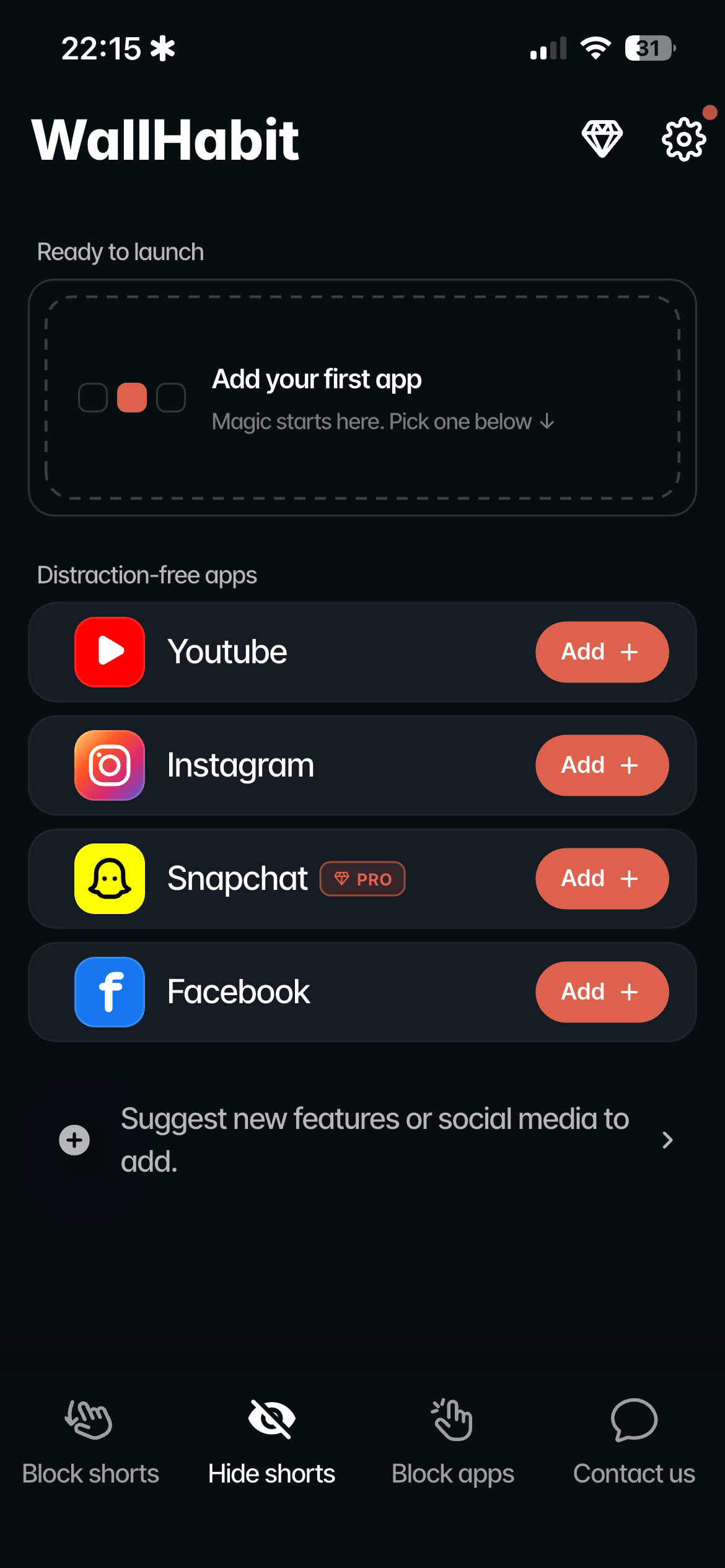
Open WallHabit and go to the Hide settings — distraction-free mode lives there, separate from the native blocking toggles.
-
Switch to distraction-free Instagram: tap Add, then pick exactly what to hide — Reels, the Explore page, suggested posts.
-
Open the distraction-free version. The Reels tab is simply not there — nothing to tap, nothing to be redirected from.
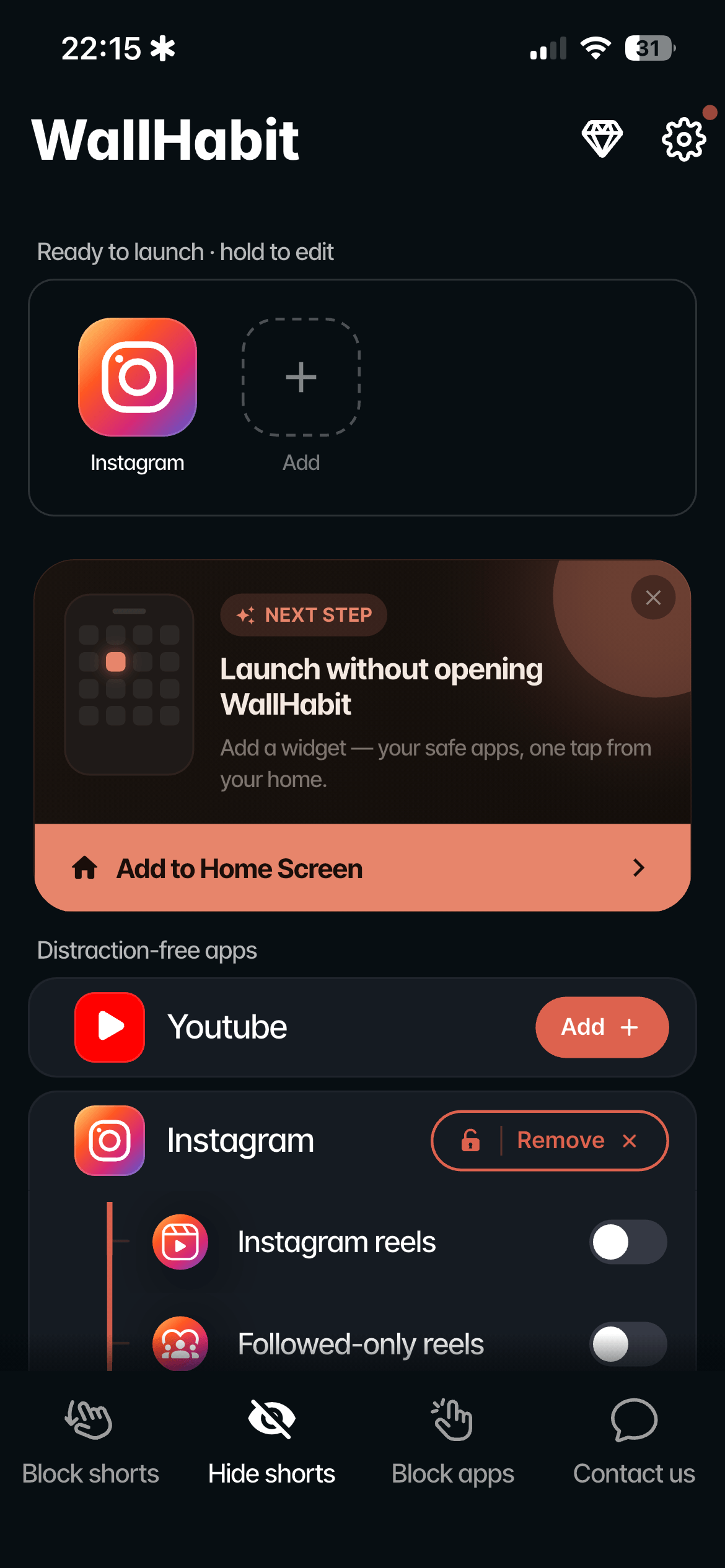
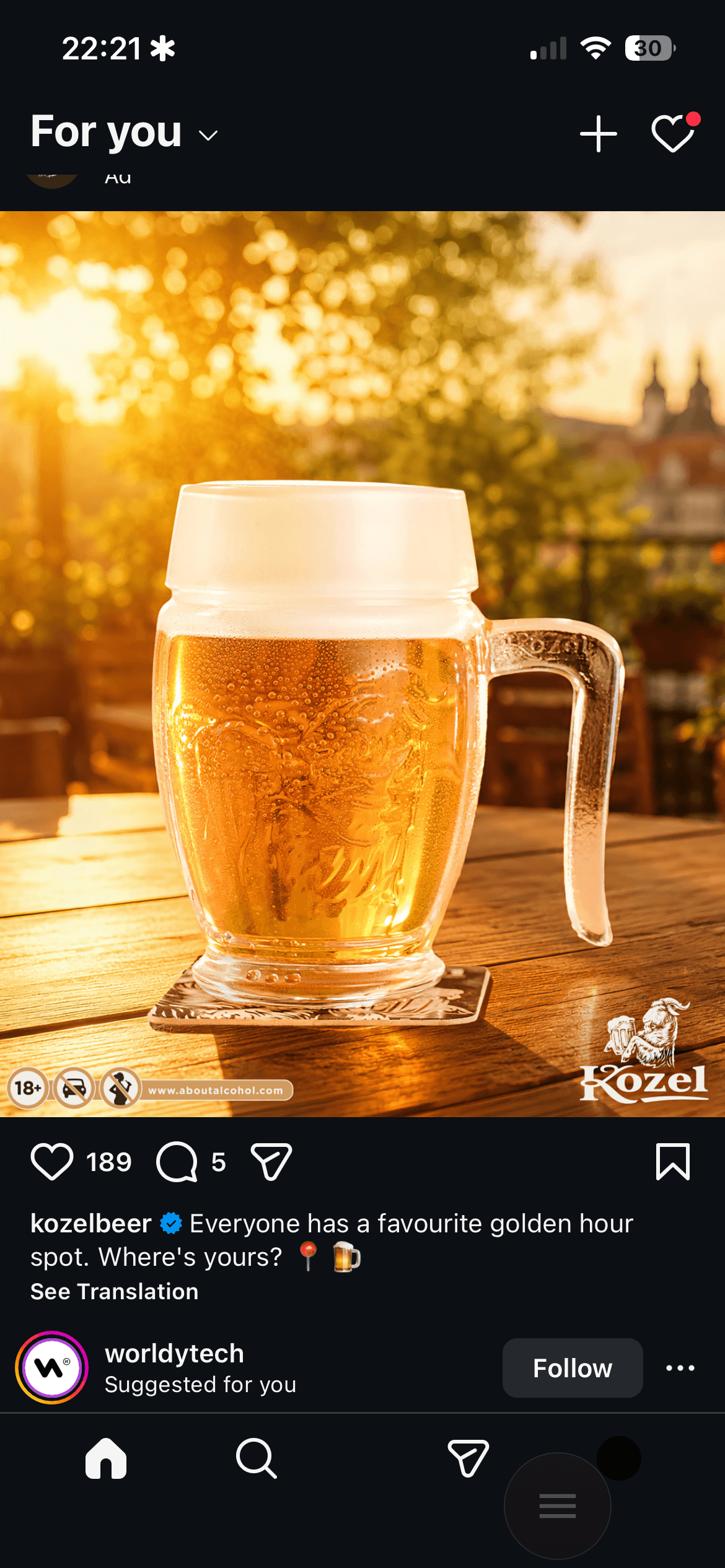
That’s the whole idea behind distraction-free mode: the distractions you select aren’t blocked or limited — they’re completely gone from the interface. You can’t get distracted by something that isn’t there.
Final thoughts: keep the app, lose the trap
Every major feed today — Instagram, Facebook, YouTube — is engineered to keep you scrolling: one more Reel, one more suggested video, one more hour gone. The classic advice is to delete your account, but that’s a blunt instrument: along with the junk, you lose your DMs, your friends and the genuinely useful side of these platforms.
You don’t have to choose anymore. Block the Reels feed natively, keep everything else that matters, and if Facebook is your weak spot, there’s a guide for disabling Facebook Reels on iPhone too. The goal was never to quit the internet — it’s to make watching a Reel a choice again, not an accident.
Frequently Asked Questions
Is there a way to disable Reels on iPhone?
Yes. Since WallHabit 1.1.4 (July 2026), you can disable the Reels feed inside the native Instagram app on iOS. Unlike Apple’s Screen Time, which can only lock the entire app, WallHabit blocks just the Reels feed — if you open it, you’re instantly taken back out — while DMs, stories and your feed keep working.
Can I block Reels and still use my DMs?
That’s exactly what native blocking is for. Open Reels and WallHabit backs you out in real time; messages, stories, search and posting stay fully available, because you’re still using the real Instagram app.
Does this work inside the real Instagram app, or a web version?
Inside the real app. Earlier solutions — including our own distraction-free mode — relied on web versions of Instagram, which are missing features like posting with music and require a separate login. WallHabit 1.1.4 works directly on the native app: nothing to re-log into, nothing missing.
Can you permanently disable Reels?
Instagram itself doesn’t offer any setting to turn Reels off — the business model depends on the feed. With WallHabit configured, the block stays on until you deliberately turn it off, and you can put that switch behind the tapping challenge to make impulsive un-blocking hard.
How do I turn off YouTube Shorts too?
The same toggle system covers YouTube Shorts in the native YouTube app. Full guide: Disable YouTube Shorts on iOS.
Is my data safe?
Yes. WallHabit processes everything locally on your device. It doesn’t read your messages, your account data, or what you watch. And you don’t just have to take our word for it—the app went through Apple’s careful App Review process.
Flip the switch. Doomscrolling gone.
Native Reels & Shorts blocking is live in WallHabit 1.1.4 for iOS.
Get WallHabit on the App Store Questions? Join the launch discussion on Reddit