
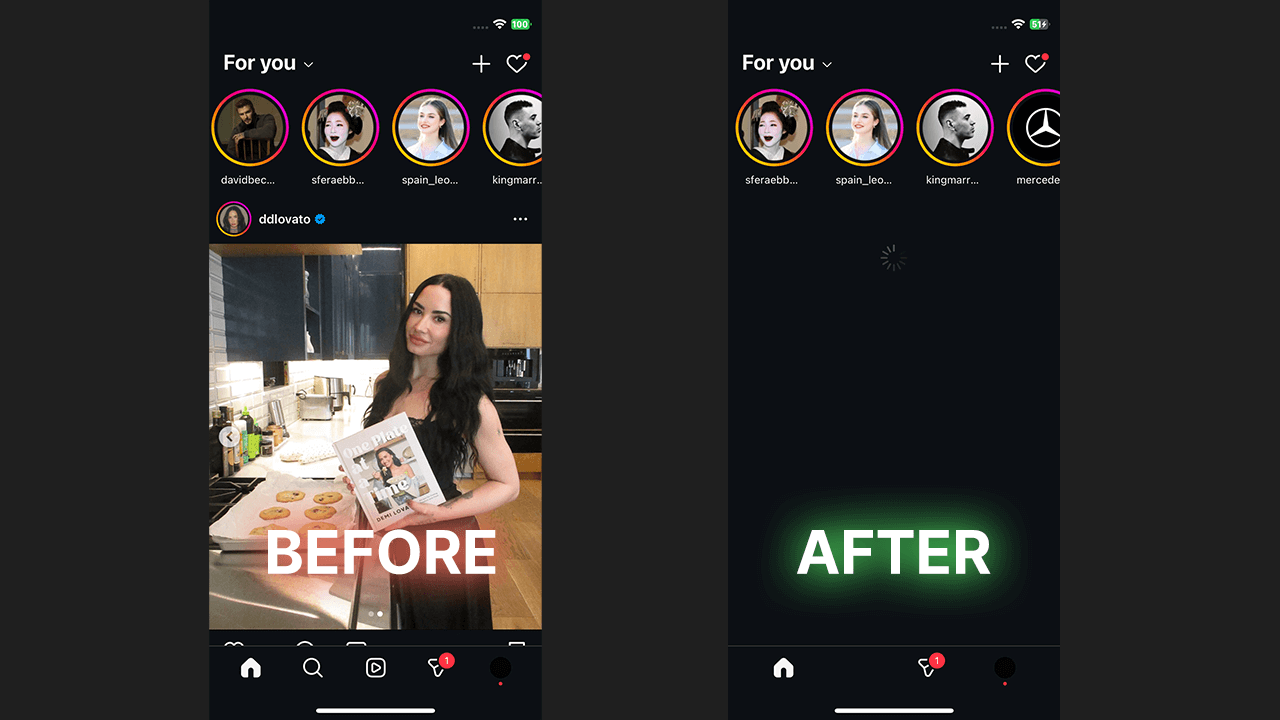
We’ve all been there: you pick up your phone just to check the time, and suddenly you’ve wasted an hour scrolling. While checking a random website or an interesting page can be distracting, social media is the real trap. We built WallHabit to solve this exact problem: these applications are deliberately designed to addict you. But there is a way out.
The Problem with popular social media
Today, every major platform is fighting for your attention. Let’s look at Instagram. It used to be just about sharing a post or checking an Instagram story. Now, the explore page and short video feeds are built to hook you. You might open the Instagram app just to reply to a message, see a single notification, and then suddenly you’re scrolling through one reel after another. This endless loop is digital addiction.
This isn’t just an Instagram problem; you’ll find the same infinite scroll on Facebook and YouTube. A quick video can easily distract you from your goals, hijacking your screen time. Every single reel is designed to keep you swiping.
Why You Shouldn’t Just delete Your account
When the noise gets too loud, many people try to remove their online presence completely. They delete the app. But taking such extreme measures means you lose the good stuff, too. You might miss an important Instagram post, lose connection with a friend’s account, or miss out on a helpful resource.
You don’t need a sketchy third-party mod to fix this. You just need a better way to manage your tech habits on your mobile device. That’s where WallHabit comes in. Available right now on the App Store, WallHabit is the ultimate commitment device for your iPhone.
How WallHabit Works on iOS
WallHabit uses psychology to help you use technology more mindfully. Instead of standard blockers, it introduces a physical challenge. When you try to open a locked app, you have to physically press and tap a button on your screen hundreds of times in a row (for example, 300 taps). If you stop, the counter resets.
This continuous tap mechanism acts as a speed bump. It makes you pause and ask: “Do I really need to open this right now?” This feature gives you a free moment of clarity.
How to disable Instagram reels and block distractions on iOS
WallHabit doesn’t stop at blocking entire apps. Let’s say you want to use the normal Instagram feed to see what your friends post, but you want to block distractions entirely. With WallHabit, you can block specific parts of an app without locking the whole thing. WallHabit makes reels blocking incredibly simple.
Want to know how to set this up? It’s straightforward:
1. Download the latest update of WallHabit on the Appstore.
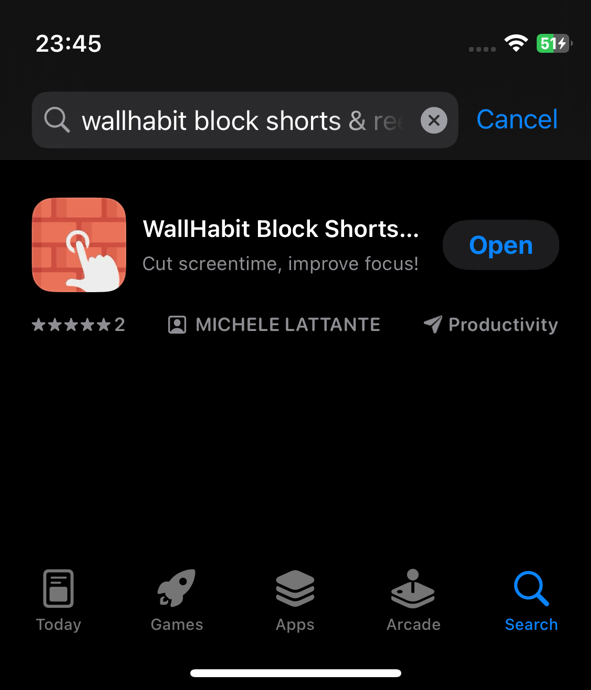
2. Open the app, follow the setup and find your Instagram setting.
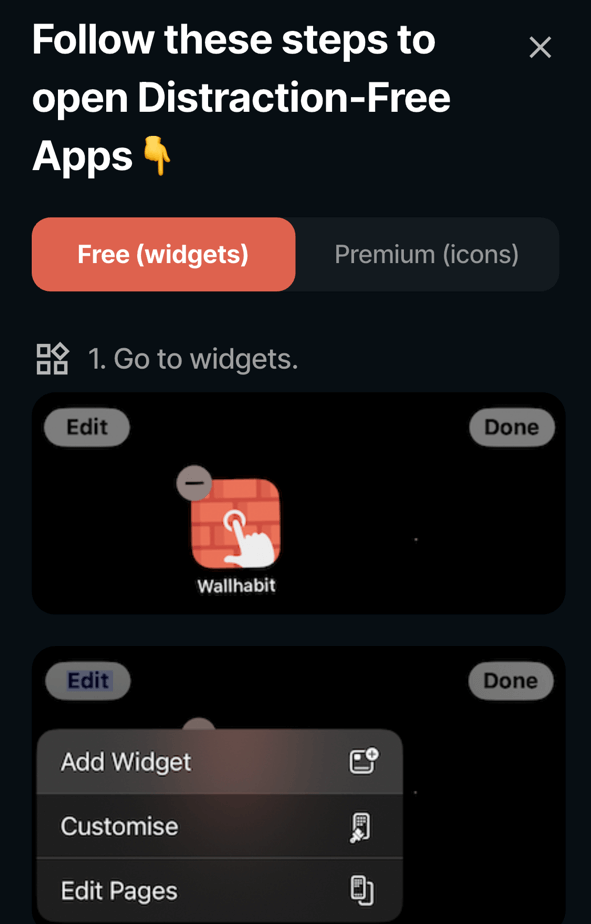
3. Choose the option to hide the reels tab.
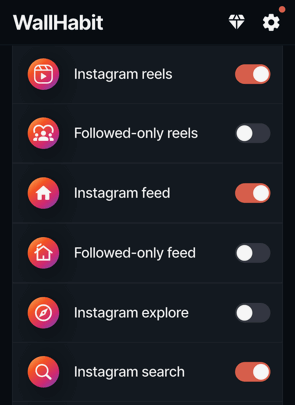
4. Enable the disable reels toggle and enjoy a distraction free experience!
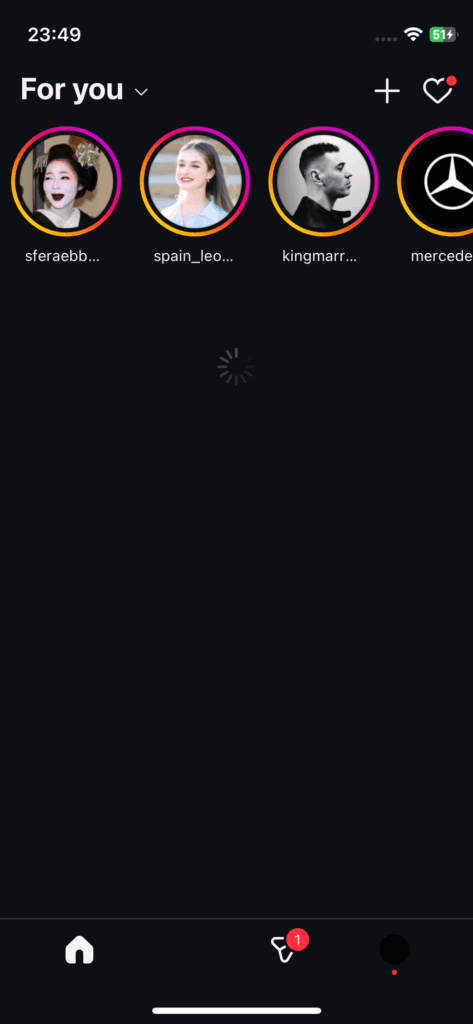
Once you set this up, the Instagram app will no longer suggest or show endless videos. You effectively disable the trap. No more mindlessly swiping from one reel to another reel. Navigating reels on iOS finally puts the user in control. Watching a reel becomes a conscious choice, not an accident.
Customize your experience to make it flexible
You can easily customize your approach to fit a flexible mode. You don’t have to use the distraction-free apps forever. Instead, keep your normal Instagram app locked behind the tapping challenge for when you truly need it (like posting new content or adjusting a specific setting), and use our distraction-free version on your phone for everyday browsing. This ensures you completely block Instagram reels without losing access to core features. As always, your privacy is strictly protected locally on your device.
Here is a quick tip: Use WallHabit on iOS to disable YouTube shorts or Facebook feeds right before bed. This will improve your sleep and ensure a truly distraction-free morning. Watching another reel won’t keep you awake.
Take Back Your Time
Whether you want to watch a single story, check your Instagram feed, or just enjoy social media without the guilt, WallHabit for iOS is the key. Stop letting algorithms feed you post after post of junk content. It’s time to manage your digital life
Frequently Asked Questions
Is there a way to disable reels on iPhone?
Yes, while iOS doesn’t have a native switch to turn off reels, you can use a dedicated commitment device like WallHabit. Apple’s built-in Screen Time only blocks entire apps and is easily bypassed with a quick tap. WallHabit, on the other hand, specifically targets the addictive features within the apps, allowing you to disable the reels feed on your iPhone while still maintaining access to direct messages and essential functions.
Can you permanently disable reels?
Native social media apps do not allow you to permanently disable reels because their business model relies on keeping you scrolling. However, you can achieve a permanent solution by using WallHabit. As long as WallHabit is configured on your device, it consistently blocks the reels interface, essentially removing the temptation permanently and giving you a clean, distraction-free browsing experience every time you open the app.
How do I turn reels off on Instagram?
Instagram does not provide an in-app setting to simply turn off the reels tab. To get rid of them, you need an external solution. By setting up WallHabit on iOS, you can access a “Distraction-Free” version of Instagram. This tailored environment completely hides the reels section, meaning you can check your normal feed and reply to friends without the algorithm pushing endless short videos onto your screen.
How to disable reels and shorts?
The most effective way to disable both Instagram Reels and YouTube Shorts at the same time is through an app blocker designed for specific features, like WallHabit. Once downloaded from the App Store, you can configure it to hide the short video feeds across multiple platforms. This ensures that whether you open YouTube to watch a specific tutorial or Instagram to post a photo, you won’t be derailed by addictive short-form content.