
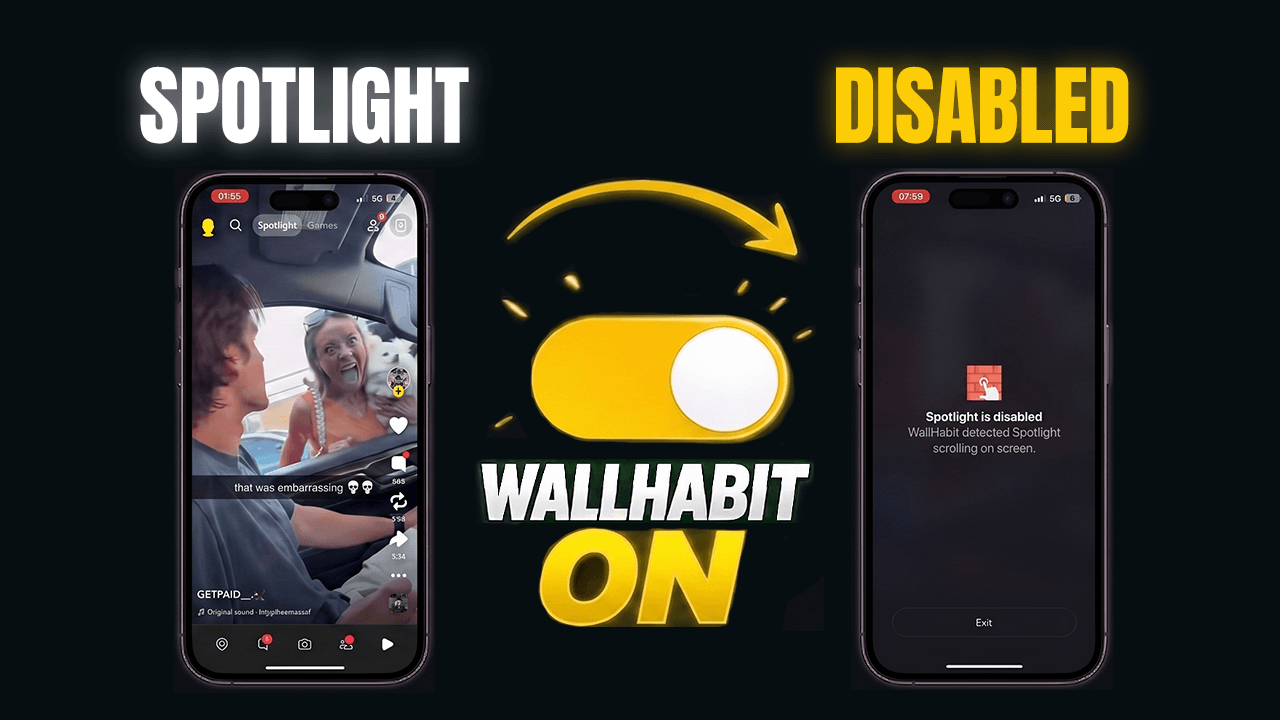
Since WallHabit 1.1.4 (July 2026), you can block Snapchat Spotlight inside the native Snapchat app on your iPhone. Your chats, Snaps, camera and friends’ Stories keep working exactly as before — but the moment you land on the Spotlight feed, WallHabit detects it and takes you straight back out. No web versions, no deleting the app, no losing your Streaks. Here’s the two-minute setup, and why nothing like this existed on iOS until now.
What changed in WallHabit 1.1.4
Snapchat has a split personality: half of it is the app you use to talk to your friends, the other half is an endless feed of stranger videos engineered to keep you swiping. Until now, iPhone users could only fight it with blunt tools — lock the entire app (and lose your chats and Streaks with it) or move to stripped-down web versions where the camera doesn’t come along.
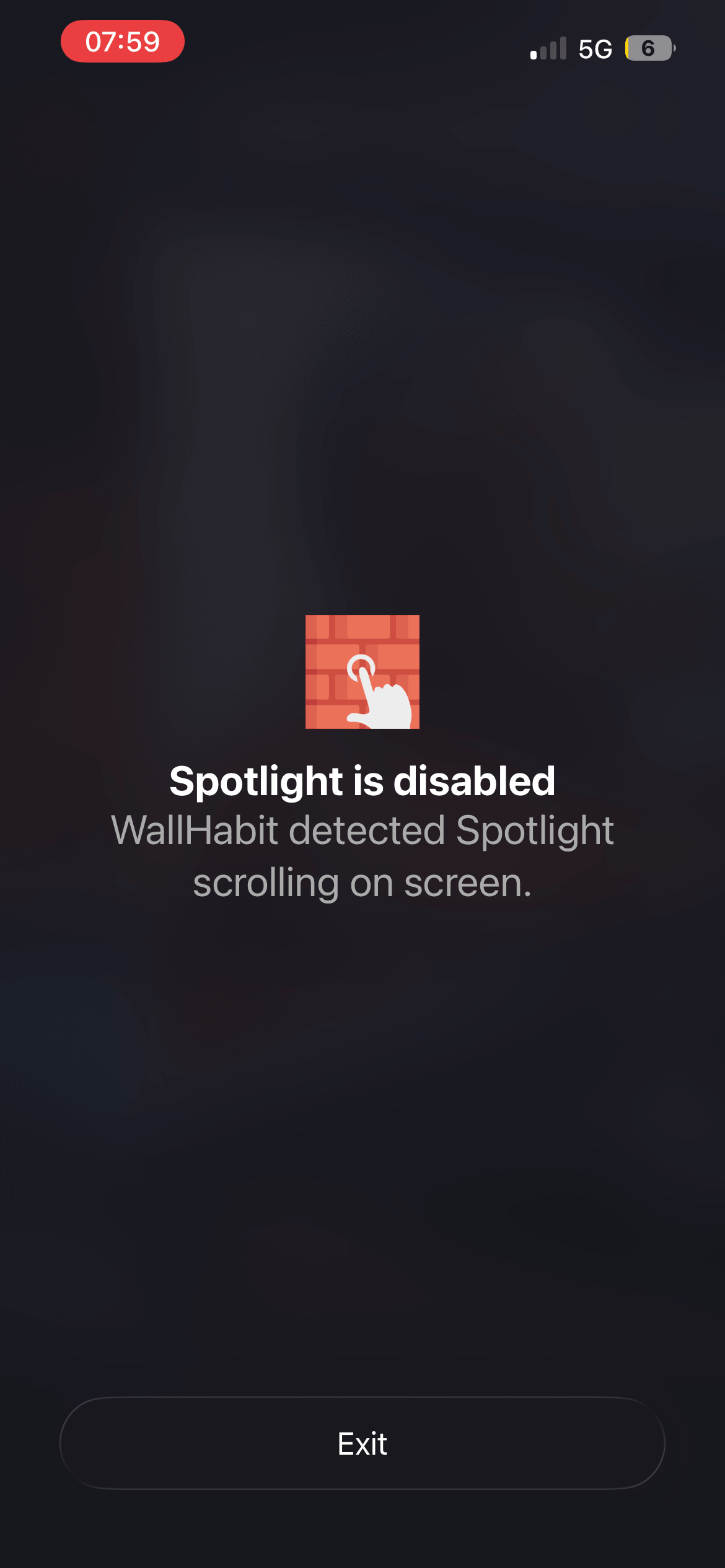
WallHabit 1.1.4 splits the app the right way. Native Spotlight blocking works inside the real Snapchat app: flip the switch, and the moment the Spotlight feed opens, WallHabit detects it and instantly backs you out — while messaging, Snaps and everything you actually use Snapchat for stays untouched. It’s the same detection system that already covers Reels and Shorts, now pointed at Spotlight.
What Snapchat itself lets you do (and why it’s not enough)
Snapchat offers no setting to turn Spotlight or the Discover page off — the feeds are the business model, so they’re kept one tap away at all times. The most you can do natively is dig through notification preferences and mute some alert categories, but the app keeps finding reasons to ping you back toward the feed.
The workarounds people use elsewhere don’t exist here either: on Android some users sideload old APK versions to get a feed-free Snapchat, but iOS doesn’t allow downgrading apps at all. If you keep ending up in Spotlight at midnight, it’s not a discipline problem — until now there was simply no off switch.
Why this used to be considered impossible on iOS
iOS keeps apps strictly sandboxed from one another, and Apple’s own Screen Time works at the wrong level: it can lock the whole Snapchat app behind a timer — chats included — but it can’t reach inside and switch off a single feature, and its limits vanish with one tap on “Ignore Limit”. So the market settled for web wrappers and called in-app blocking impossible.
Making it work natively took a month of development on the hardest system we’ve ever shipped (the launch discussion on Reddit has the backstory). Here’s how the three approaches stack up:
| WallHabit 1.1.4 native blocking |
Web “distraction-free” versions | iOS Screen Time | |
|---|---|---|---|
| Stops Spotlight without locking the whole app | ✓ | ✓ | ✗ |
| Works inside the real Snapchat app | ✓ | ✗ | ✗ 1 |
| Chat and messaging keep working | ✓ | ✓ | ✗ |
| Camera, Snaps and Streaks keep working | ✓ | ✗ | ✗ 1 |
| No extra login required | ✓ | ✗ | ✓ |
| Hard to bypass in a weak moment | ✓ | ✓ | ✗ 2 |
1 Screen Time can only lock the entire Snapchat app — it can’t turn off a single feature. 2 “Ignore Limit” removes the block with one tap.
How to block Snapchat Spotlight on iPhone (2-minute setup)
-
Update WallHabit to version 1.1.4 from the App Store. If you don’t have it yet, download it — native Spotlight blocking is included.

-
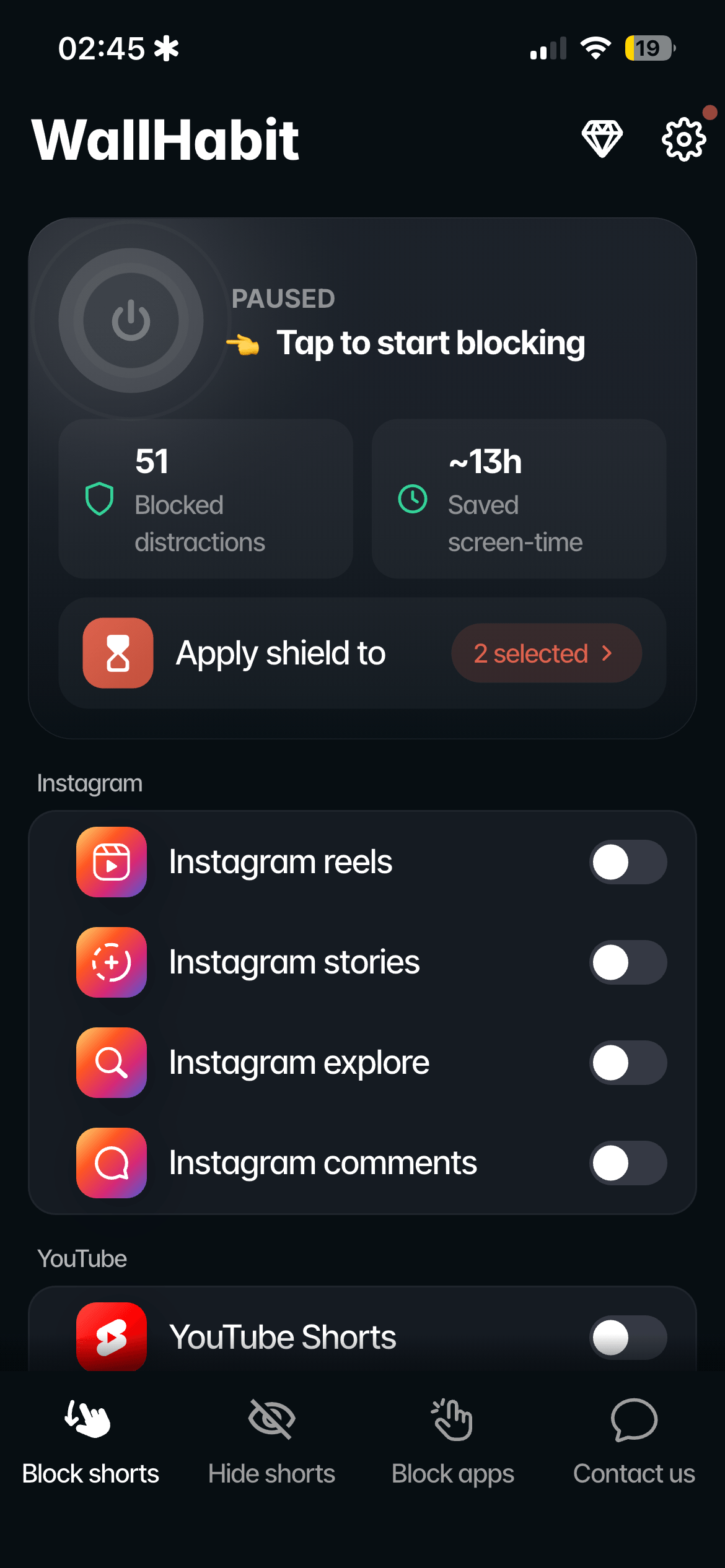
Open WallHabit and go to the Snapchat settings.
-
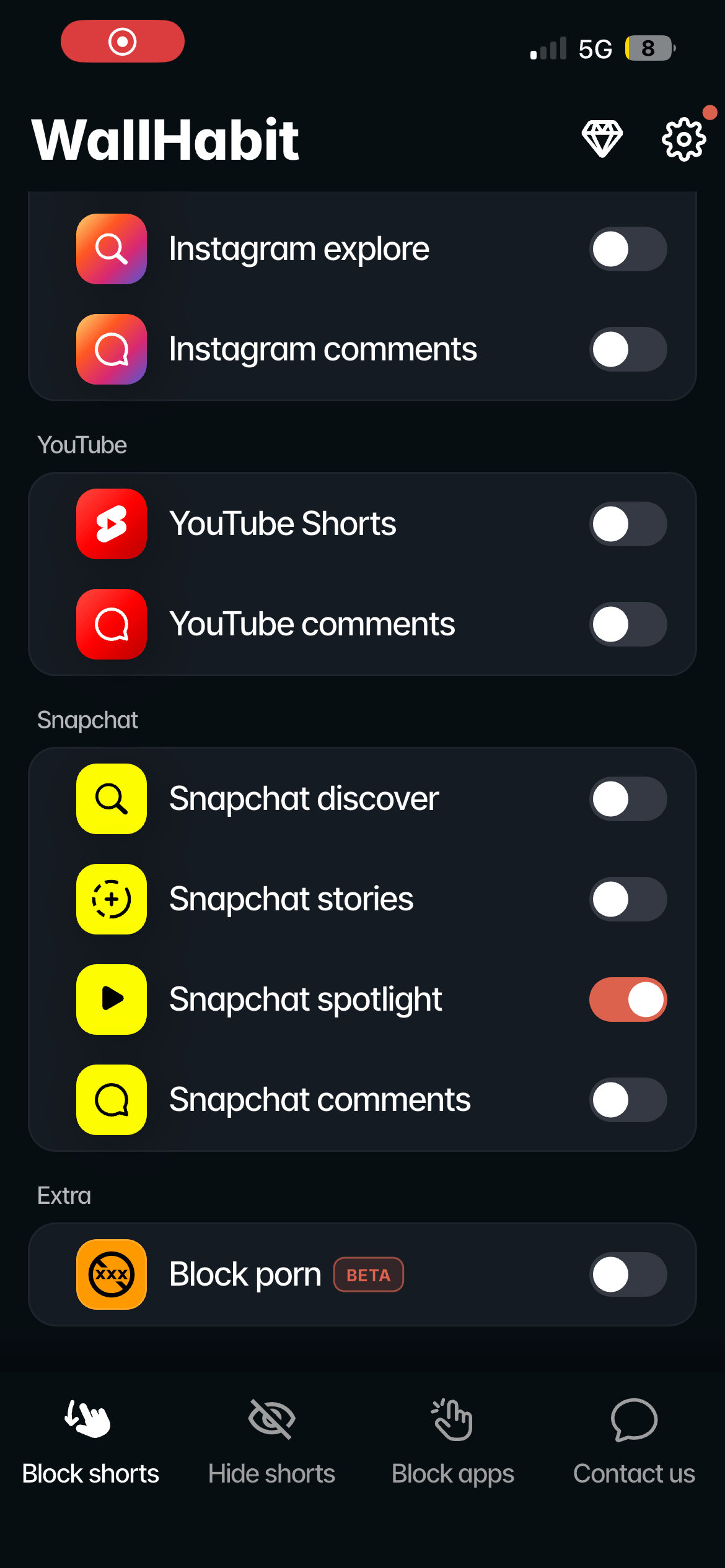
Turn on the “Block Spotlight” toggle. That’s the whole setup.
-
Open Snapchat and tap Spotlight. The feed starts to load, WallHabit detects it, and you’re back with your friends — chats, camera and Streaks exactly where you left them. The swipe never gets to start.
Reels and Shorts are covered by the same system: here are the guides to blocking Instagram Reels and blocking YouTube Shorts inside the native apps.
Pair it with the tapping challenge
Blocking Spotlight handles the trap inside Snapchat; the tapping challenge handles the reflex of opening the app at all. For study sessions or deep work, put Snapchat itself behind WallHabit’s Tap to unlock challenge — for example, 300 consecutive taps to open it, with the counter resetting if you stop — and let Spotlight blocking cover everyday use.
Everything runs locally on your device: WallHabit doesn’t read your messages or your account.
Alternative: distraction-free Snapchat
Native blocking is the main method now, but the distraction-free mode hasn’t gone anywhere — and for Snapchat it does two things the native block doesn’t. It hides more: not just Spotlight, but Stories, the Discover page, even comments and the search bar if you want them gone. And it goes completely silent: the distraction-free environment sends no background notifications at all, so the viral-video pings stop and you see new messages only when you decide to open the app.
Setting it up takes about a minute:
-
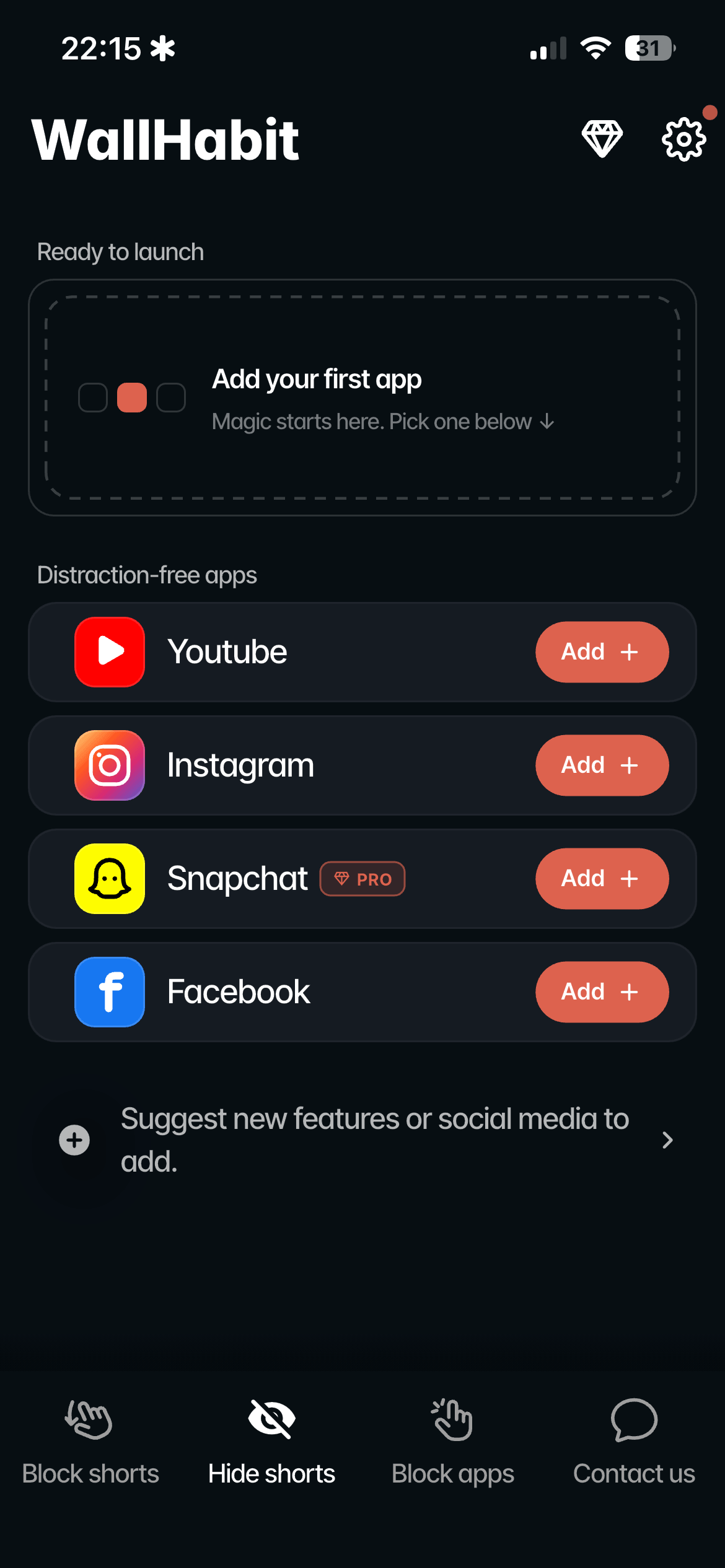
Open WallHabit and go to the Hide settings — distraction-free mode lives there, separate from the native blocking toggles.
-
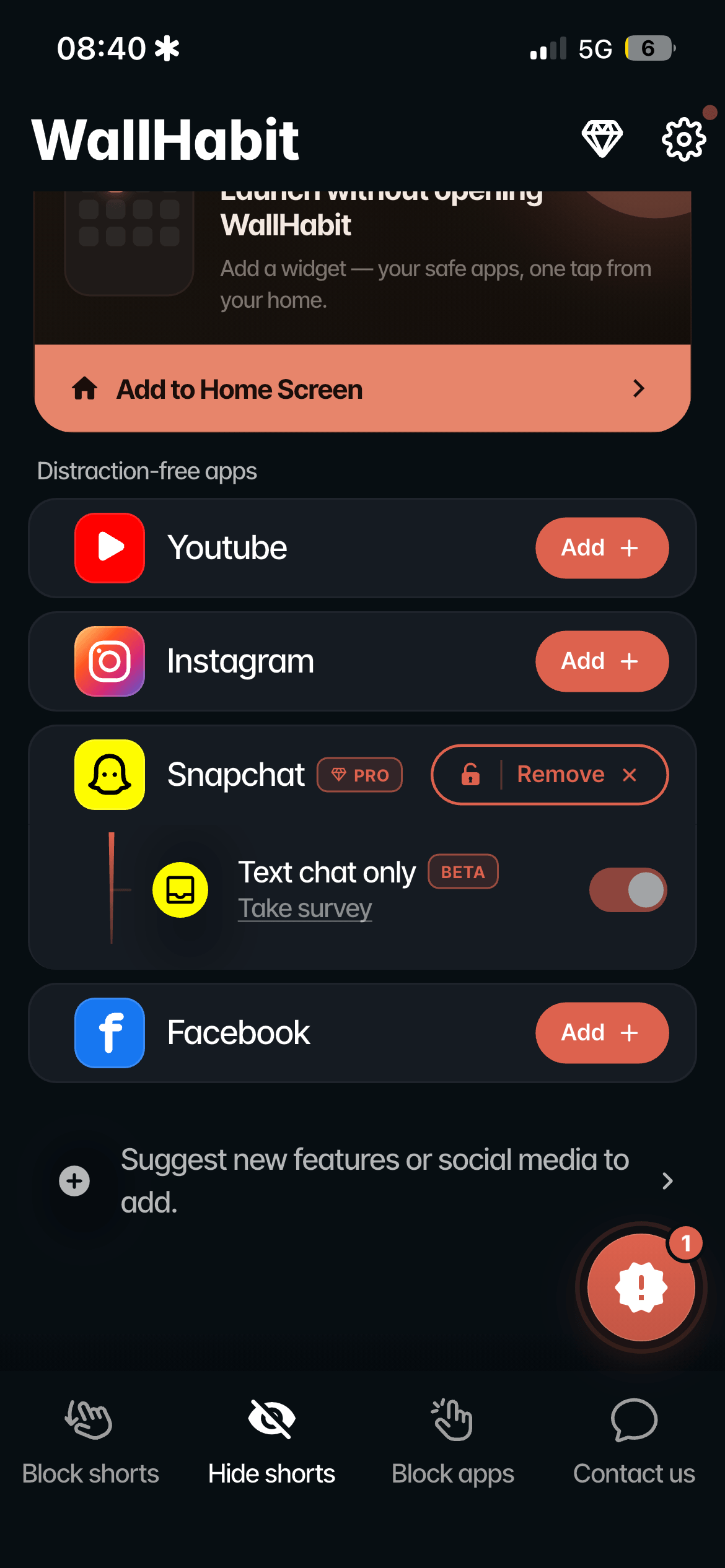
Switch to distraction-free Snapchat: tap Add, then pick exactly what to hide — Spotlight, Stories, Discover, comments, search.
-
Use the distraction-free version for quiet days. The feeds you removed simply aren’t there, and no ping will ever pull you back in.
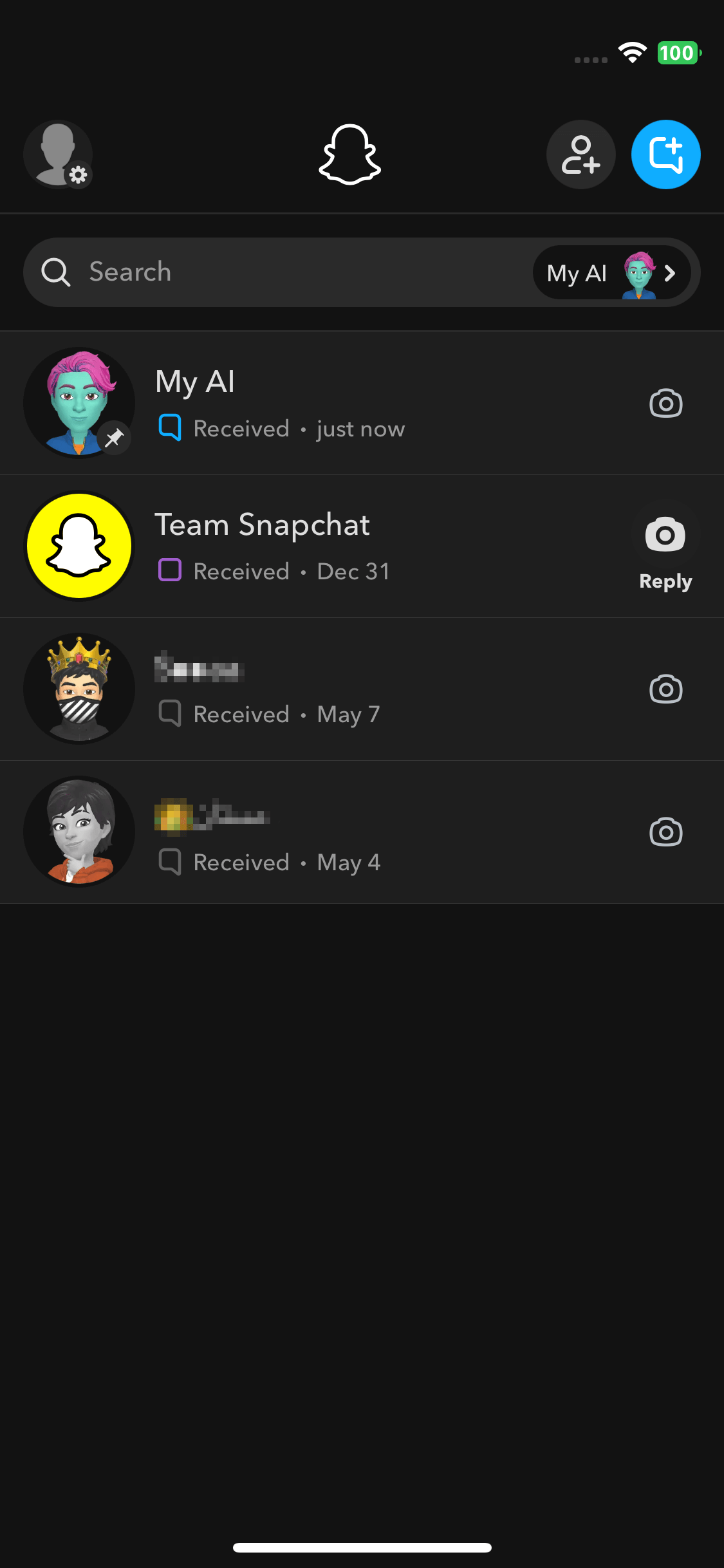
Two philosophies, one goal: native blocking catches you at the door of the feed; distraction-free removes the door — and unplugs the doorbell. Run both if you like: distraction-free for quiet messaging days, the native app with Spotlight blocked when you need the camera, your Snaps and your Streaks.
Frequently Asked Questions
How do I turn off Spotlight on my iPhone?
Snapchat itself offers no switch for it, but since WallHabit 1.1.4 (July 2026) you can block the Spotlight feed inside the native Snapchat app on iOS: open Spotlight and WallHabit instantly backs you out, while chats, camera and Streaks keep working. Apple’s Screen Time can’t do this — it only locks the entire app, messages included.
Can I block Spotlight and keep my chats, Snaps and Streaks?
Yes — that’s the point of native blocking. You stay in the real Snapchat app with your own account: messaging, the camera, your Snaps and your Streaks are untouched. Only the Spotlight feed stops working.
Is there a way to disable Snapchat Discover and Stories too?
That’s what the distraction-free mode is for: it completely hides whatever you select — Discover, Stories, comments, even the search bar — so the sections simply don’t exist on your screen. You can run it alongside native Spotlight blocking.
How do I turn off Snapchat Spotlight notifications?
Native notification settings only get you part of the way, because the app keeps finding new reasons to ping you. WallHabit’s distraction-free Snapchat sends no background alerts at all: you see new messages only when you actively open the app.
How do I stop my child from scrolling Spotlight?
Turn on Spotlight blocking on their device, then keep the setup protected behind WallHabit’s Tap to unlock challenge so the block can’t be casually undone. They keep the messaging they use Snapchat for; the endless feed stops being an option.
Does the same thing work for Instagram Reels and YouTube Shorts?
Yes — Spotlight blocking runs on the same native system that covers Instagram and YouTube. Full guides: block Instagram Reels inside the native app and block YouTube Shorts inside the native app.
Final thoughts: keep the friends, lose the feed
Snapchat was built for talking to your friends. Spotlight is something else — a TikTok wearing Snapchat’s clothes, bolted onto the app you actually came for. Blocking it doesn’t take Snapchat away from you; it gives you back the part that was yours.
Keep the chats, the Snaps, the Streaks and the people, and lose the stranger-videos machine. Opening a feed should be a decision — from now on, on your phone, it is.
Flip the switch. Doomscrolling gone.
Native Spotlight, Reels & Shorts blocking is live in WallHabit 1.1.4 for iOS.
Get WallHabit on the App Store Questions? Join the discussion on Reddit